Hooks
Hooks are automated actions that run at the boundaries of a stage -- before it starts or after it completes. They execute outside the agent conversation and are used for side effects like data preparation, notifications, external system calls, or cleanup tasks.
How Hooks Work
Hooks are tied to specific stages and fire at predictable moments in the stage lifecycle:
Stage Lifecycle:
  ┌─────────────────────────────┐
  │  Entry Hooks fire            │  ← Before agents start
  ├─────────────────────────────┤
  │  Agent conversation runs     │  ← Main stage execution
  ├─────────────────────────────┤
  │  Exit Hooks fire             │  ← After agents finish
  └─────────────────────────────┘
Hooks run outside the agent conversation context. They do not participate in the multi-agent dialogue -- they are standalone tool executions that happen before or after the conversational work.
Entry Hooks
Entry hooks run before the stage's agent conversation begins. They execute in the order they are defined.
Use entry hooks for:
- Data preparation -- Fetch data from an external API and make it available to agents in the stage.
- Environment setup -- Initialize resources, create temporary files, or configure external services.
- Validation -- Check preconditions before agents start working. For example, verify that a required API is reachable.
- Notifications -- Alert a Slack channel or send an email that a workflow stage is starting.
In the Workflow Builder, entry hooks appear as small nodes docked to the left side of their stage, connected via a dashed link. A small diamond indicator on the stage's left edge signals that entry hooks are present.
Exit Hooks
Exit hooks run after the stage's agent conversation completes. They execute in the order they are defined.
Use exit hooks for:
- Result processing -- Transform or reformat the stage's output before it flows to the next stage.
- Persistence -- Save results to an external database, file system, or API.
- Cleanup -- Release resources, delete temporary files, or shut down services.
- Notifications -- Send a summary of what the stage accomplished to stakeholders.
- Metrics -- Record timing data, token usage, or quality scores.
In the Workflow Builder, exit hooks appear as small nodes docked to the right side of their stage, connected via a dashed link. A small diamond indicator on the stage's right edge signals that exit hooks are present.
Configuring a Hook
Each hook specifies:
- Tool -- Which tool to execute. This must be a tool available in the project's tool library.
- Output Key (optional) -- A label for storing the tool's result so that downstream agents and hooks can reference it.
Hooks execute a single tool call. The tool runs with the stage context available but does not have access to the agent conversation messages.
Example: Data preparation hook
An entry hook runs "Fetch Latest Metrics" before agents start. The result is stored under "metrics_data", which agents in the stage can then reference during their work.
Example: Publishing hook
An exit hook runs "Publish to CMS" after agents finish. No output key is needed because the result does not need to be passed downstream.
Blocking Hooks
By default, hooks are fire-and-forget -- if one fails, the error is logged and execution continues. Blocking hooks change this behavior: a failure raises an error and stops the workflow.
Enable Blocking on a hook when the hook's success is critical to the workflow's correctness. This is especially relevant for hooks that wait for external input, where silently skipping would leave the workflow in an undefined state.
Sets Outcome
When Sets outcome is enabled, the tool's return value becomes the stage's outcome. Combined with outcome routing, this allows external signals to determine which stage runs next.
For example, an exit hook sends a draft to a reviewer and blocks until they respond with "approve" or "revise". The response becomes the stage outcome, and outcome routing sends the workflow to a Publish stage or back to a Revise stage.
The outcome set by the hook drives routing just like an agent-set outcome. This includes support for default routing and workflow termination.
Output Key
The Output Key field controls where the hook's return value is stored in stage data, making it available to downstream stages. If omitted, a default key based on the hook's tool name is generated automatically.
Built-in Tool: Request Confirmation
A built-in blocking hook that sends a message to a contact (via WhatsApp, Telegram, Slack, or any configured channel) and waits for a response. If no contact is specified, the request appears only in the workflow run UI.
When configuring this hook, you provide:
| Field | Required | Description |
|---|---|---|
| Message | Yes | The message to send. Supports placeholders that are filled from stage data. |
| Options | Yes | The allowed responses, e.g. "approve, revise". The response must match one of these. |
| Contact | No | Which contact to deliver to. Omit to show the request in the run UI only. |
| Timeout | No | How long to wait for a response before timing out. Default: 24 hours. |
The response is not limited to humans — any system that can respond (another workflow, an API, a scheduler) can unblock the hook.
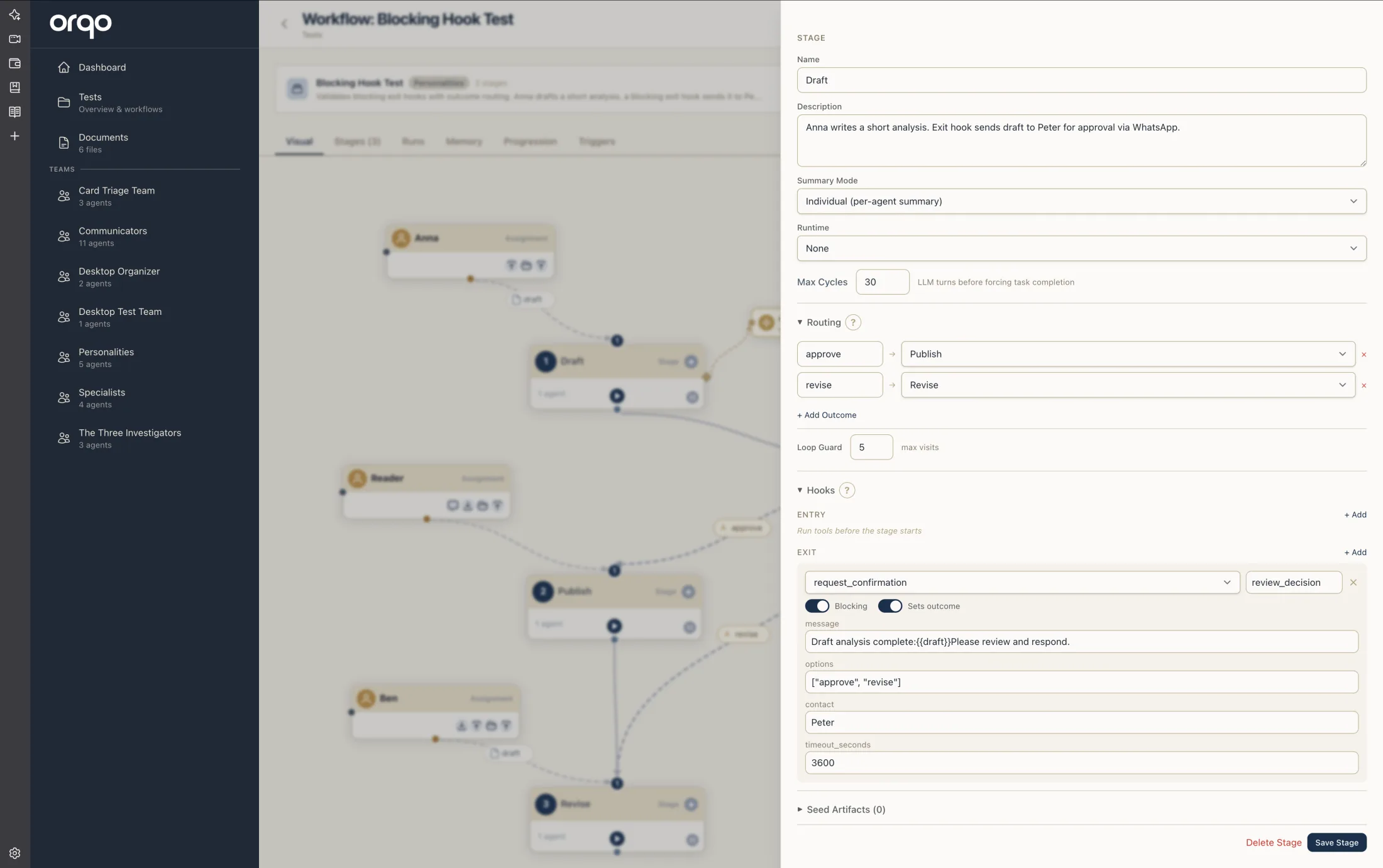
Combine Request Confirmation with Blocking + Sets outcome + outcome routing for approval gates, review loops, and external decision points.
Multiple Hooks
A stage can have any number of entry hooks and exit hooks. They execute sequentially in the order they are defined. If a non-blocking hook fails, the error is logged but subsequent hooks and stage execution continue. Blocking hook failures stop the workflow.
Managing Hooks in the Workflow Builder
There are two ways to add hooks:
-
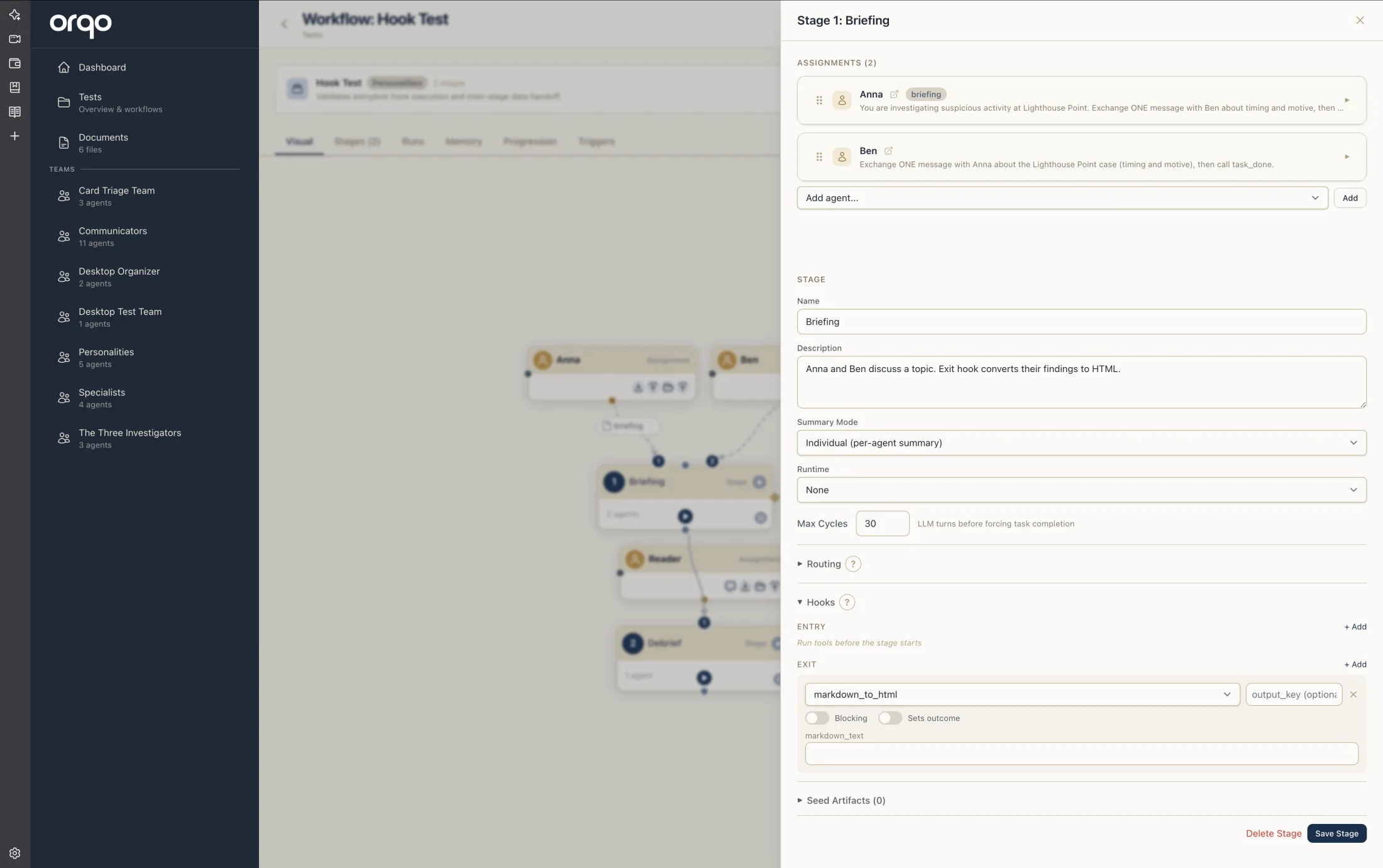
Drag and drop -- Drag an "Entry Hook" or "Exit Hook" card from the sidebar palette onto a stage node. This opens the stage drawer with the Hooks tab selected.
-
Stage drawer -- Click a stage node to open its drawer, then open the Hooks tab. Add hooks using the add form, which presents a dropdown of available tools from the project's tool library.
The Hooks tab shows entry hooks and exit hooks in separate lists, each with add/remove controls.
Clicking a hook node in the graph also opens the stage drawer with the Hooks tab selected.
Hooks vs Agent Phases
Hooks and agent phases (see Agents) both run at stage boundaries, but they serve different purposes:
| Feature | Hooks | Agent Phases (Stage Start / Stage Complete) |
|---|---|---|
| Runs in conversation | No | Yes |
| Has access to agent tools | No (single tool call) | Yes (full tool set) |
| Can interact with other agents | No | Yes |
| Configuration scope | Stage-level | Agent-level or assignment-level |
| Best for | Side effects, external calls, data prep | Conversational setup/teardown, coordination |
Use hooks when you need to execute a single tool call outside the conversation. Use agent phases when the setup or teardown work benefits from conversational context, multi-step reasoning, or coordination with other agents.