Tools
Tools give agents the ability to act — search the web, query databases, call APIs, execute code, and more. ORQO has four distinct tool layers, each serving a different purpose.
The Four Tool Layers
Layer 1: Built-in Capabilities (System)
Every agent automatically has access to a set of built-in capabilities that enable teamwork. These are not visible in the UI and cannot be modified — they're the fundamental abilities an agent needs to function within a team:
- Messaging — communicate with other agents in the team
- Sharing results — broadcast results to teammates
- Dispatching tasks — route tasks to other agents
- Passing — explicitly yield the floor without producing output ("nothing to add right now")
- Completing — signal that the agent has finished its part of the task
You don't configure these. They're always available.
Layer 2: Standard Tool Library
The Standard Tool Library is ORQO's catalog of engine-native tools — Python classes built into the engine that are resolved by name at runtime. These are the workhorses that most agents use: file operations, shell commands, web search, git, communication, and knowledge graph tools.
You can browse the full catalog in the Developer Portal at /developer/tools. The library is read-only — you cannot modify or add standard tools. Instead, you reference them by name when building Skills.
Standard tools are organized into categories:
| Category | Example Tools |
|---|---|
| Filesystem | read_file, write_file, list_directory |
| Shell | execute_command, run_script |
| Git | git_diff, git_log, git_commit |
| Web | web_search, web_scrape, http_request |
| Communication | send_email, send_message |
| Knowledge | store_knowledge, query_knowledge_graph |
| Documents | Document access and management tools |
| Data | Data processing and analysis tools |
The Knowledge tools (store_knowledge and query_knowledge_graph) connect agents to the Long-Term Memory system, allowing them to persist and retrieve domain knowledge across workflow runs.
Layer 3: ToolFactory Tools (Custom)
This is ORQO's custom tool system — the ToolFactory. ToolFactory tools are Python scripts with typed parameters that live inside ORQO. In almost all cases, the Tool Builder AI writes them for you: describe what you need in plain English and it produces a verified, runnable tool end-to-end. You never have to open a code editor unless you want to.
The source is always yours, and developers stay in full control. Any ToolFactory tool can be opened in the Developer Portal's Tools page — read the Python, edit it, change parameters, swap credentials, and re-run the 5-phase verification pipeline. The platform stores the source code, and the engine's DynamicToolFactory compiles it into live tools at runtime.
Each tool definition includes:
| Field | Description |
|---|---|
| Name | Tool name the LLM sees and calls |
| Description | What the tool does — guides the LLM on when to use it |
| Category | A simple grouping you choose to organize your tools — cosmetic, used for filtering in the Tools list |
| Parameters | Typed input parameters (string, integer, number, boolean, array) with descriptions |
| Source Code | Python function body — the actual implementation |
| Credentials | API keys the tool needs (injected automatically at runtime) |
| Requires Runtime | Turn this on when a tool needs to run on a remote runtime — for heavy dependencies or restricted operations like shell and file access. The security scanner turns it on and locks it automatically for any tool that uses shell commands or file operations; when locked, it's shown as such and can't be turned off without re-writing the code. |
When a workflow starts, the platform validates these definitions — with type checking, automatic credential injection, and security scanning.
My Tools vs. the Tool Library
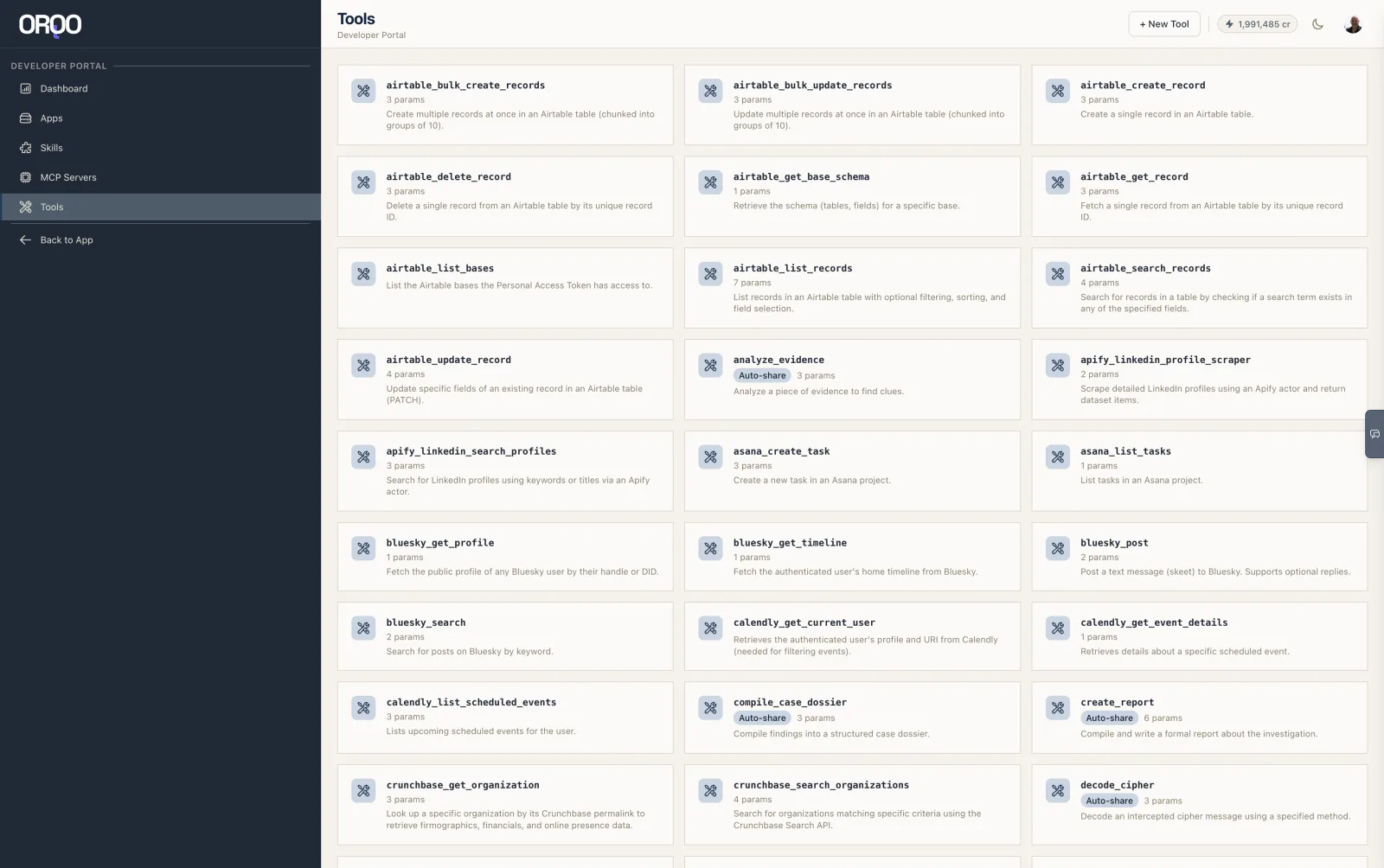
The Developer Portal's Tools page splits these two layers into two tabs so the distinction is always clear:
- My Tools — the custom ToolFactory tools you built (or had the Tool Builder build for you). These have editable Python source code, a category, parameters, and credential requirements. You see the tools you've built for this workspace — your own authored tools, scoped to the org you're working in, not other developers' tools and not the whole platform library.
- Tool Library — the read-only Standard Tool Library (Layer 2 above): engine-native tools resolved by name, each carrying a category from the engine catalog. You can browse and reference them, but you can't edit their code.
On both tabs, each tool card shows its properties as pills — category, Requires Runtime, parameter count, and required credentials — so My Tools and the Tool Library read the same way at a glance. The list filters live as you type, with category filter pills, matching the rest of the app's list pages.
This is the primary way to build project-specific tools. Unlike MCP servers, you don't need to deploy a separate service. Describe the tool to the Tool Builder, review what it produces, and the tool is ready — with full source-code access if you ever want to take it over by hand.
Layer 4: MCP Tools (External)
MCP (Model Context Protocol) servers expose tools over a standardized protocol. Connect an MCP server in Settings → MCP Servers, and ORQO discovers its tools automatically.
MCP tools can also come through Apps — when you register an App, ORQO connects to its underlying MCP server and fetches all available tools. In both cases (standalone MCP server or App-wrapped), tools are auto-discovered and made assignable to agents via Skills.
See MCP Servers for connection details and Integrations for how Apps wrap MCP servers.
Tools and Long-Term Memory
Every tool — whether a standard tool, a ToolFactory tool, or an MCP tool — has two flags that connect it to the Long-Term Memory system:
| Flag | What it does |
|---|---|
| Enriches Knowledge Graph | Tool results are fed into the async enrichment pipeline. The knowledge graph grows passively every time this tool runs. |
| Requires Extraction | Strip ads, navigation, and boilerplate before classification. Enable this for tools that return raw web content. |
When an MCP server or App is registered, ORQO automatically analyzes each discovered tool and sets these flags based on a platform-wide registry of known tools. A web search tool gets both flags enabled (its output is knowledge-worthy but needs cleaning). A Slack messaging tool gets neither (its output isn't worth storing).
For ToolFactory tools, you can override these flags manually. For MCP tools, the flags are set automatically by the platform and cannot be changed.
This means your knowledge graph grows passively with every workflow execution, without agents needing to explicitly store anything. A research agent runs a web search, and the useful content from that search automatically flows through the Knowledge Curator, gets classified, and becomes part of the navigable knowledge graph.
Runtimes Are Invisible to Agents
Some tools need a sandboxed execution environment — a Python container, a headless browser, a code interpreter. In other platforms, this is the agent's problem. In ORQO, agents don't know or care about runtimes.
When an agent calls a tool, it gets back a result. Whether that tool ran locally, on a remote MCP server, or inside a sandboxed Docker container is entirely managed by the platform. The agent's experience is always the same: call the tool, get the result.
Runtimes are configured at the Skill or Tool Definition level by the person building the workflow — not by the agent at execution time. See Runtimes for the full reference on runtime providers and configuration.
Assigning Tools to Agents
Tools reach agents through two paths:
-
Skills — bundle tools with credentials into a reusable package. Assign a Skill to an agent in the Team Builder, and the agent gets all bundled tools in every stage. Think of skills as the agent's permanent expertise.
-
Stage assignments — assign specific tools to an agent for one particular stage. This keeps agents focused and avoids loading them with tools they don't need for every task.
See Skills for the full explanation of skills vs. stage tools.