Outcomes & Routing
By default, workflow stages execute in linear order -- stage 1, then stage 2, then stage 3. Outcomes and routing add decision points that let workflows branch to different stages or loop back to earlier ones based on what happened during a stage.
Outcomes
Outcomes are the possible results a stage can produce. You define them as a list of labels on the stage (e.g., "approved", "needs_revision", "rejected").
When a stage has outcomes defined, the agents determine which outcome best describes the result of their work. The selected outcome then drives the routing decision.
Defining Outcomes
Outcomes are simple labels. Choose names that clearly describe the decision being made:
| Stage | Example Outcomes |
|---|---|
| Review | approved, needs_revision, rejected |
| Classification | high_priority, medium_priority, low_priority |
| Validation | valid, invalid |
| Research | sufficient_data, needs_more_research |
Keep outcomes mutually exclusive and collectively exhaustive -- exactly one outcome should apply to any given execution.
A stage without outcomes always advances to the next sequential stage. Outcomes are only needed when you want conditional routing.
Outcome Routing
Outcome routing maps each outcome to a target stage. In the Workflow Builder, you configure this visually by drawing links from outcomes to their target stages:
"approved"        → Publish stage
"needs_revision"  → Draft stage (loops back)
"rejected"        → (no target — advances to next sequential stage)
- An outcome mapped to a target stage routes execution to that stage.
- An outcome with no target (or not present in the routing map) advances to the next sequential stage.
Example: Review Loop
Consider a three-stage workflow: Draft, Review, Publish.
Draft (Stage 1)
  ↓
Review (Stage 2)
  outcomes: ["approved", "needs_revision"]
  routing: { "approved": Stage 3, "needs_revision": Stage 1 }
  ↓ (approved)
Publish (Stage 3)
If the Review stage produces "approved", execution advances to Publish. If it produces "needs_revision", execution loops back to Draft, where the agent can revise based on the reviewer's feedback.
Branching
Routing enables branching -- different outcomes send execution to entirely different paths:
Classify (Stage 1)
  outcomes: ["technical", "editorial", "legal"]
  routing:
    "technical"  → Technical Review (Stage 2a)
    "editorial"  → Editorial Review (Stage 2b)
    "legal"      → Legal Review (Stage 2c)
Each branch can lead to its own sequence of stages. This is how you build workflows that adapt to the content or situation they encounter.
Branching stages should have routing defined for every outcome. An unrouted outcome falls through to the next sequential stage, which may not be the intended behavior. You can use a default route as a catch-all for any outcomes not explicitly mapped -- see Default Routing below.
Looping
Routing also enables looping -- an outcome routes back to the current stage or an earlier stage:
Research (Stage 1)
  outcomes: ["sufficient_data", "needs_more_research"]
  routing: { "needs_more_research": Stage 1, "sufficient_data": null }
Here, if the research is insufficient, the stage re-executes. The agents retain context from the previous iteration, so they can refine their approach rather than starting from scratch.
Loop Guards
Loops without limits can run forever. Two safety mechanisms prevent this:
| Guard | Scope | Default | Description |
|---|---|---|---|
| Max Stage Visits | Per stage | 5 | Maximum number of times the workflow can enter this stage. After this limit, the loop is broken and execution advances to the next sequential stage. |
| Max Cycles | Per stage execution | 30 | Maximum conversation cycles within a single stage visit. Prevents a single execution from running indefinitely. |
Max Stage Visits is the primary loop guard. If a stage has max_stage_visits: 3 and the workflow routes back to it a fourth time, the routing is overridden and execution falls through to the next stage in sequence.
Max Stage Visits counts total entries, including the initial entry. A value of 5 means the stage can execute up to 5 times total in a single workflow run.
Default Routing
A default route acts as a catch-all. When the stage's outcome does not match any explicitly mapped outcome -- or when no outcome is produced at all -- the default route is used instead.
For example, you might map "approved" to the Publish stage and set the default to Draft. Any outcome other than "approved" (including no outcome at all) routes to Draft.
End Workflow
Any outcome route can target End Workflow instead of a stage. This terminates the workflow at that point -- no more stages execute.
Use this when a branch should end the workflow without falling through to subsequent stages. This is particularly useful for terminal stages that should not advance to whatever comes next in the linear sequence.
Example: Approval Gate
Consider a workflow with three stages: Draft, Publish, and Revise. A blocking exit hook on the Draft stage sends the result to a reviewer and waits for a response of "approve" or "revise" (see Blocking Hooks).
Draft (Stage 1)
  Exit hook: Request Confirmation → blocks until "approve" or "revise"
  Outcome routing:
    "approve" → Publish (Stage 2)
    "revise"  → Revise (Stage 3)

Publish (Stage 2)
  Default route: End Workflow               ← terminates the workflow

Revise (Stage 3)
  Default route: Draft                      ← loops back unconditionally
The Publish stage uses a default route of End Workflow to stop the workflow after publishing -- without this, execution would fall through to the Revise stage. The Revise stage defaults to Draft, always looping back regardless of outcome, creating an unconditional return to drafting.
Outcomes are not only set by agents. Exit hooks with Sets outcome enabled can also set the stage outcome, allowing external signals (human approvals, API responses, scheduled events) to drive routing decisions. See Blocking Hooks for details.
Workflow Targets
In addition to routing to stages, an outcome can trigger an entirely different workflow. Instead of targeting a stage, you configure the outcome to launch a workflow with optional context and a "continue at" directive.
For example, the "approved" outcome could trigger the "Deploy to Production" workflow with context "Deploy the approved changes", and then end the parent workflow. The "rejected" outcome routes to the Archive stage as normal.
When the "approved" outcome fires, the "Deploy to Production" workflow runs as a separate run. After it completes, the "continue at" directive determines what happens next -- end the workflow, or continue execution at a specific stage.
This is powerful for composing modular workflows: a human approves via a blocking hook, the approval triggers a deployment workflow, and the parent workflow ends cleanly.
See Workflow Triggering for the full configuration reference and examples.
Visual Representation
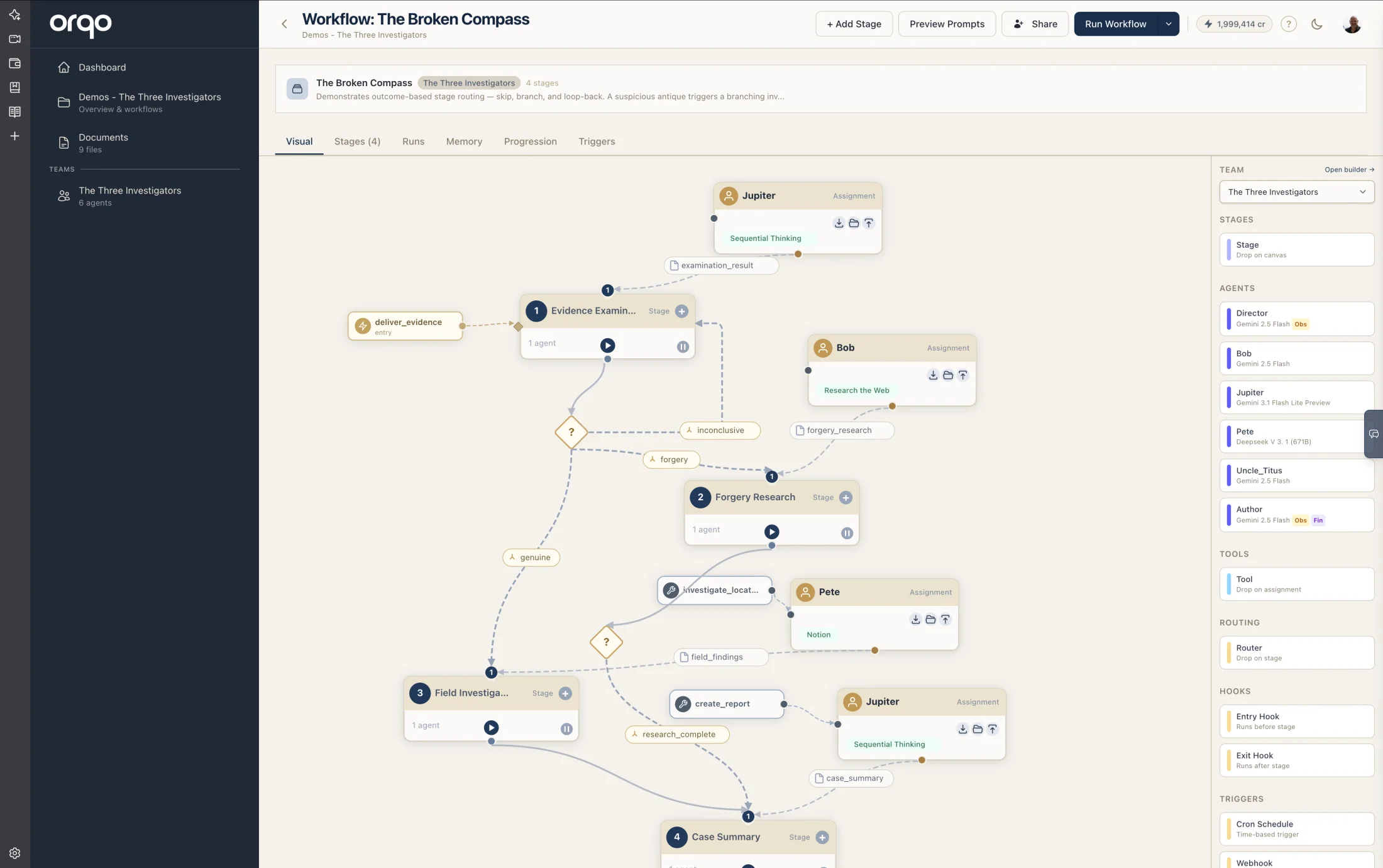
In the Workflow Builder, outcomes and routing are visualized with diamond decision nodes:
- A stage with outcomes has a small rotated diamond (the decision node) placed below it.
- A solid link connects the stage to its diamond.
- From the diamond, dashed links branch out to target stages. Each link is labeled with an amber pill showing the outcome name and a fork icon.
- Backward routes (to earlier stages) use manhattan routing with right-side anchors and rounded connectors to avoid crossing other nodes.
- Unrouted outcomes link to the next sequential stage.
When a stage fans out to multiple downstream stages, the builder arranges each branch as its own subtree, placing them side by side rather than stacking everything in one column. This keeps parallel paths visually distinct so each branch can be followed end to end. A purely linear workflow still renders as a single top-to-bottom chain.
A branch that ends the workflow -- an outcome (or the stage's default) routing to End Workflow -- is terminal: it draws no onward flow link, so you can see at a glance where a path stops.
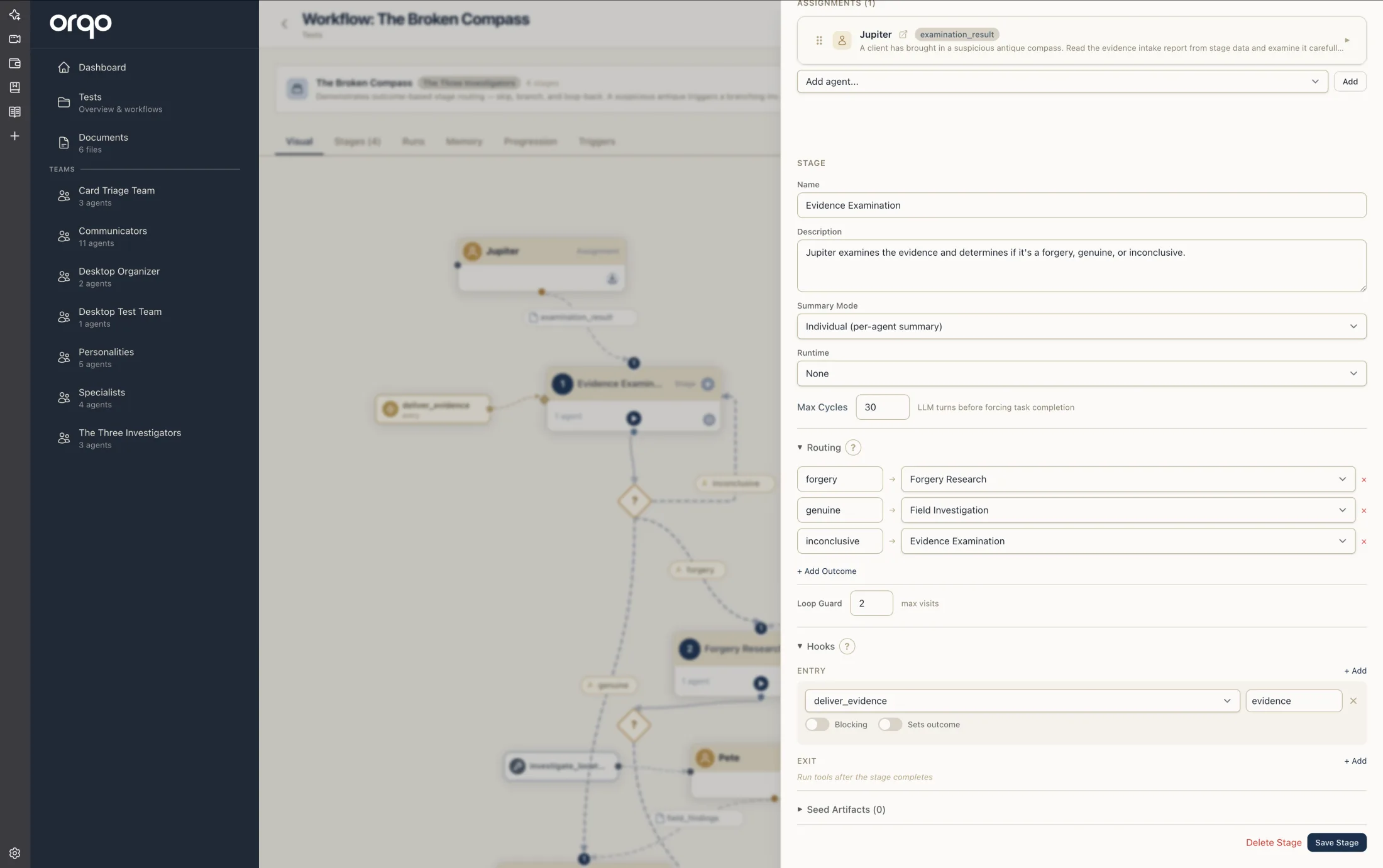
Clicking a diamond node or an outcome link label opens the stage drawer with the Routing tab selected.
Configuring Routing in the Stage Drawer
The Routing tab in the stage drawer provides:
- Default -- A control at the top of the tab setting where any unmatched outcome goes: a stage, another workflow (the ⚡ Trigger-workflow group), or
_end. - Outcomes list -- Add or remove outcome strings. Each outcome is a text input, with "+ Add" at the tab's top-right.
- Outcome routing dropdowns -- For each defined outcome, a dropdown lists all stages in the workflow, plus
_endand the project's other workflows. Select the target for each outcome.
The stage's Loop Guard (max stage visits) is not on this tab -- it lives in the Limits group on the Main tab, alongside Max Cycles.
Workflow Builder Shortcut
Drag a "Router" card from the sidebar palette onto a stage node to open the stage drawer with the Routing tab selected. This is a quick way to add routing to a stage.
Design Considerations
Keep Outcomes Simple
Outcomes work best as binary or small-set decisions. If you find yourself defining many outcomes, consider whether the decision is better handled by splitting the stage into multiple stages or using agent-level logic within the stage.
Combine Branching and Looping
A single stage can both branch and loop. For example:
Review (Stage 2)
  outcomes: ["approved", "minor_revisions", "major_revisions", "rejected"]
  routing:
    "approved"        → Publish (Stage 3)
    "minor_revisions" → Quick Fix (Stage 2a)
    "major_revisions" → Draft (Stage 1)      ← loop back
    "rejected"        → null                  ← fall through
Test Loop Guards
When designing loops, start with conservative Max Stage Visits values and increase them only after confirming that the loop converges. A review loop that never approves will hit the guard and fall through, which may not produce the desired result.