Assignments
A stage assignment connects an agent to a stage, defining what that agent does, what tools it can use, and what capabilities it has during that stage's execution. Assignments are the bridge between the team (who) and the workflow (what).
Assigning Agents to Stages
Agents are assigned to stages from the workflow's team. Only agents belonging to the workflow's assigned team can be assigned to its stages.
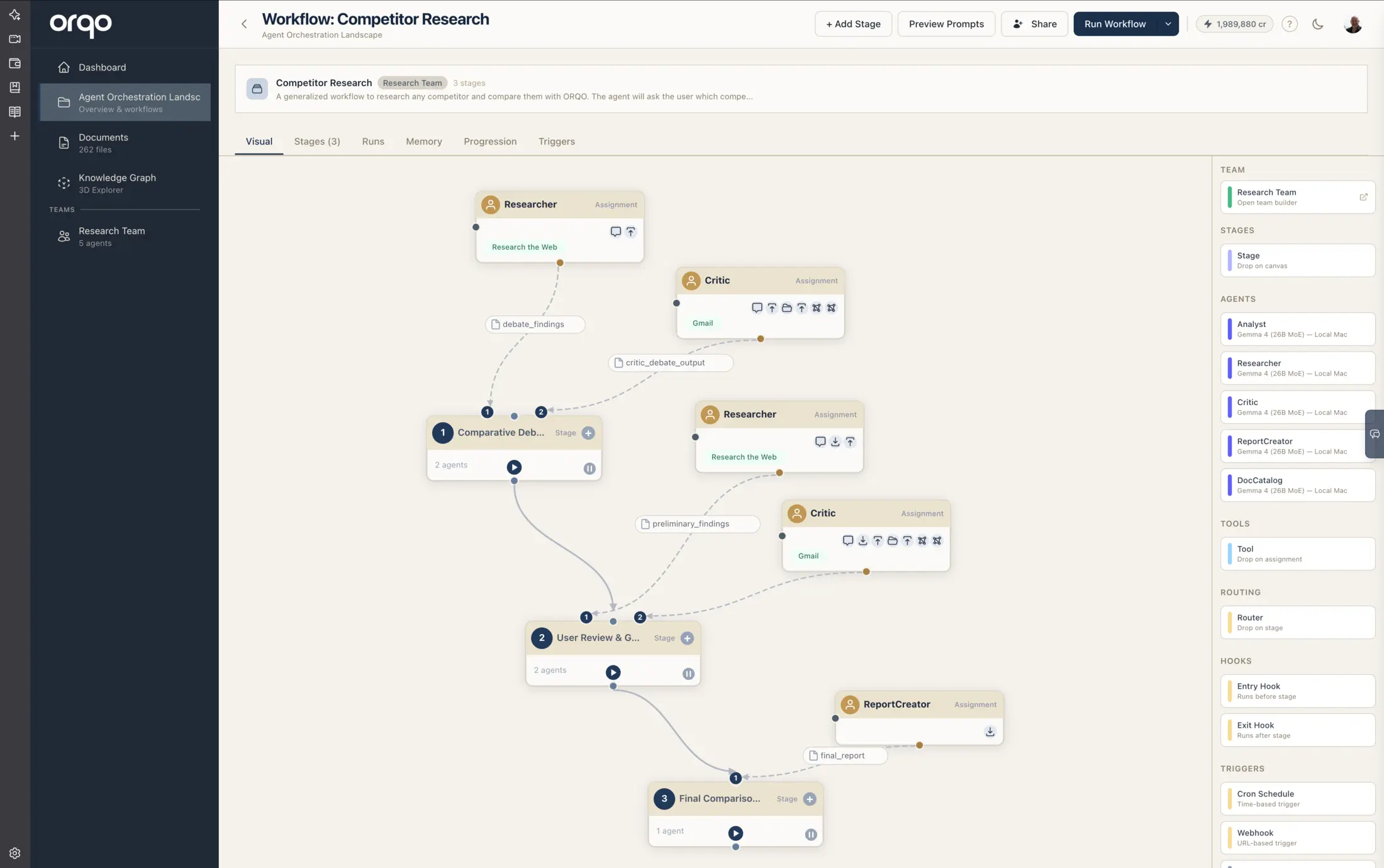
In the Workflow Builder, drag an agent card from the sidebar palette onto a stage node to create an assignment. Each assignment appears as a numbered node above its stage, connected by a dashed link. The number corresponds to the agent's execution order within the stage.
The order of assignments matters. Agents execute in the order they are assigned (by position). The first agent runs first, and each subsequent agent runs after the previous one completes its turn in the conversation cycle.
Task Directive
The task directive is a markdown text field that provides stage-specific instructions to the agent. While the agent's perspective (system prompt) defines who the agent is in general, the task directive tells it exactly what to do in this particular stage.
Think of it this way:
- Perspective (on the agent) = "You are a senior editor with 20 years of experience."
- Task Directive (on the assignment) = "Review the draft for factual accuracy. Flag any unsupported claims. Suggest specific rewording for unclear passages."
The task directive is injected into the agent's context alongside the stage description. Together, they give the agent a complete picture of its role in this step.
The same agent can be assigned to multiple stages with different task directives. A "Research Analyst" agent might have a task directive to "gather data" in one stage and "validate findings" in another.
Capabilities
Each assignment has boolean capability flags that control what the agent can do during the stage:
| Capability | Default | Description |
|---|---|---|
| Communicates with User | Off | The agent can send messages to and receive messages from the end user. Enable this for agents that need to ask clarifying questions or present results directly. |
| Read Stage Data | Off | The agent can read shared data from the stage's data store. This gives access to outputs from previous stages or data written by other agents in the current stage. |
| Write Stage Data | Off | The agent can write data to the stage's data store, making it available to other agents in this stage or downstream stages. |
| Spawn Subagents | Off | The agent can create lightweight subagent tasks that run in parallel. Subagents reuse the parent's LLM and team context. |
| Trigger Workflows | Off | The agent can trigger other workflows in the same project, block until they complete, and receive their results. See Workflow Triggering. |
| Can Create Artifacts | Off | The agent receives the artifact tool (to create, edit, and list structured documents) and the preview_artifact tool (to take a visual screenshot for self-review). See Artifacts. |
In the Workflow Builder, active capabilities are shown as small icons on the assignment node. Only enabled capabilities are displayed.
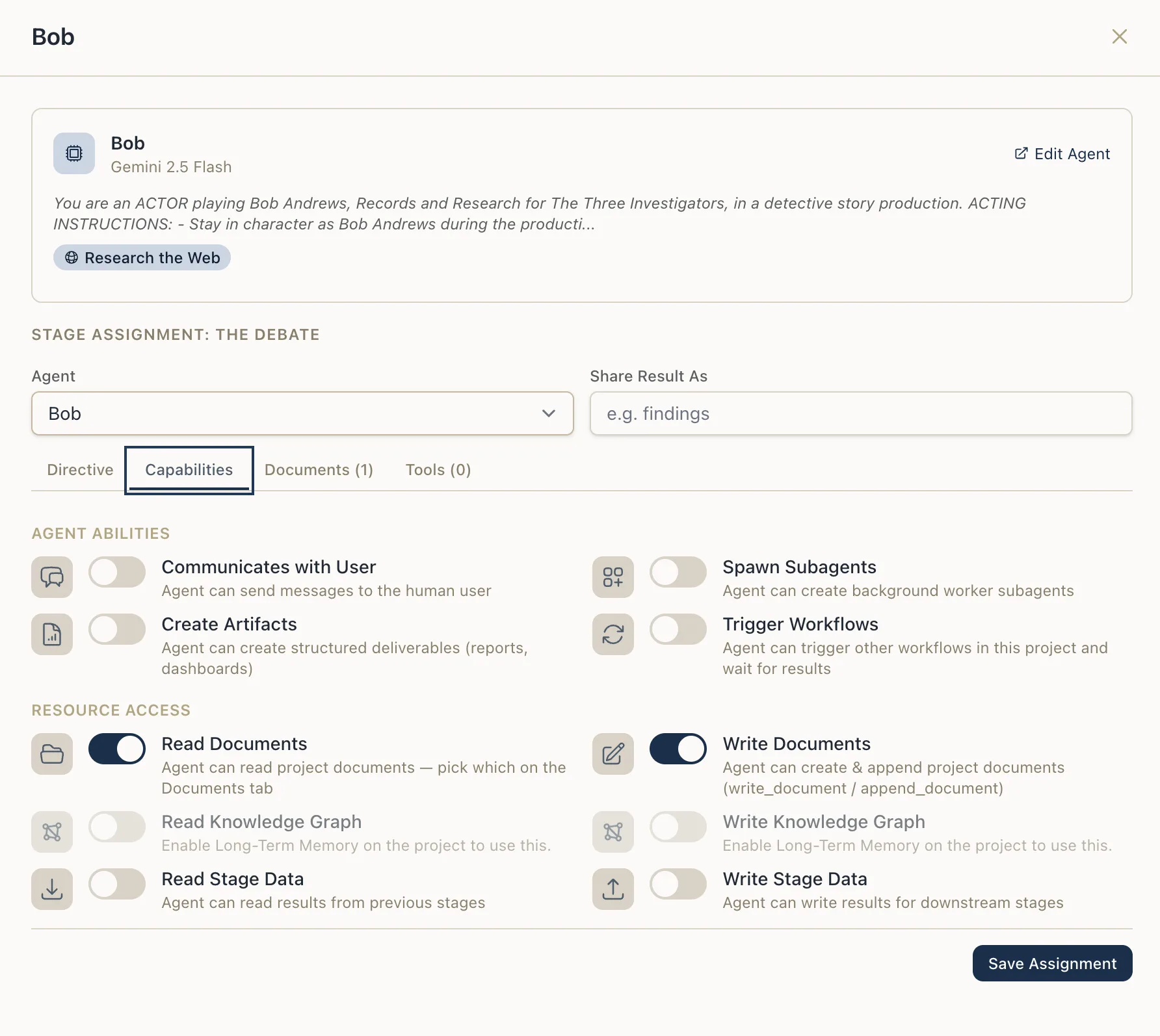
Capabilities are all disabled by default. You must explicitly enable each capability an agent needs. An agent without "Read Stage Data" enabled cannot access outputs from previous stages, even if those outputs exist.
Share Result Key
The share result key is an optional string identifier that labels the agent's output for downstream consumption. When set, the agent's final result from this stage is stored under this key in the stage data, making it easily retrievable by agents in later stages.
For example, if a "Researcher" agent has a share result key of "research_findings", downstream agents can reference that key to access the specific output rather than parsing the entire stage summary.
In the Workflow Builder, the share result key is displayed as a labeled pill on the assignment-to-stage link.
Tools
Each assignment can specify additional stage-specific tools that the agent needs for this particular task. This is distinct from the agent's skills, which represent the agent's permanent, general-purpose capabilities.
Think of it this way: an agent's skills are the expertise it was "hired" for — a researcher knows how to search the web. Stage tools are equipment issued for a specific job — this particular research task also needs access to the GitHub API.
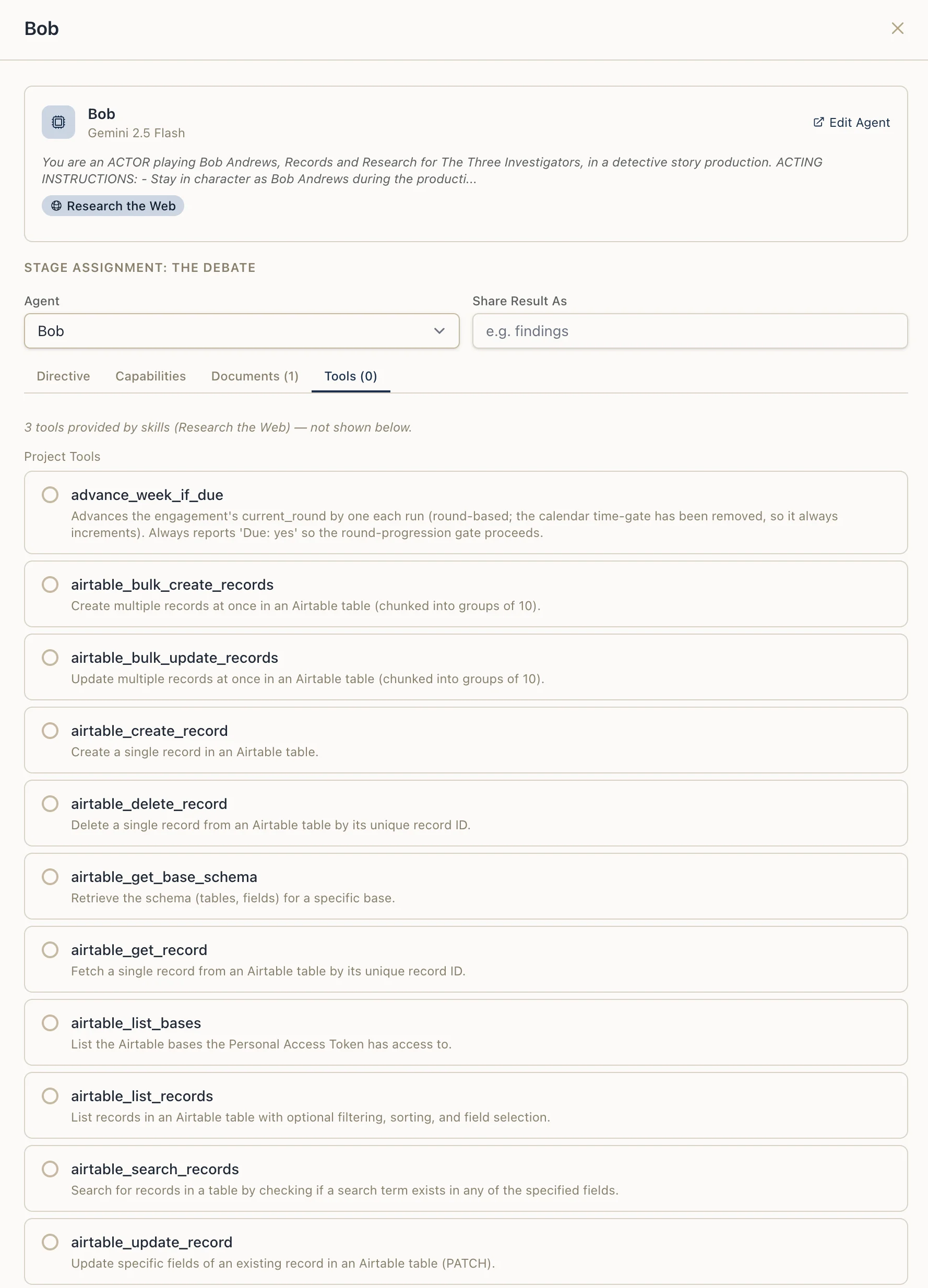
You can select which tools the agent has access to in this stage:
- If no tools are specified, the agent has access to all tools from its assigned skills (the default).
- If specific tools are selected, only those tools are available during this stage — useful for restricting a broad skill set to just what's needed.
This keeps agents focused. A "Research Agent" might have web search and file write tools in a research stage but only file read tools in a review stage. No unnecessary luggage.
In the Workflow Builder, drag a "Tool" card from the sidebar palette onto an assignment node to open the assignment drawer with the Tools tab pre-selected. Tool nodes appear as small rectangles connected to assignment nodes via dashed links.
Documents
You can also select documents from the project's document library to make available to the agent during this stage. Documents provide additional context — reference materials, datasets, or templates that the agent can read.
Field Reference
| Field | Required | Default | Description |
|---|---|---|---|
| Agent | Yes | -- | The agent being assigned (must belong to workflow's team) |
| Stage | Yes | -- | The stage this assignment belongs to |
| Position | No | Auto | Execution order within the stage |
| Task Directive | No | -- | Stage-specific instructions (markdown) |
| Communicates with User | No | Off | Can interact with end users |
| Read Stage Data | No | Off | Can read from stage data store |
| Write Stage Data | No | Off | Can write to stage data store |
| Spawn Subagents | No | Off | Can create parallel subagent tasks |
| Trigger Workflows | No | Off | Can trigger other workflows in the same project |
| Share Result Key | No | -- | Label for storing this agent's output for downstream use |
| Tools | No | All from skills | Subset of available tools for this stage |
| Documents | No | -- | Documents from the library to include in context |
Assignment in the Workflow Builder
Clicking an assignment node opens a drawer containing:
- A read-only agent summary showing the agent's name, LLM, perspective, skills, and badges.
- An editable assignment form with fields for agent selection, task directive, tools, documents, share result key, and capability toggles.
- An "Edit Agent" link that navigates to the team page for modifying the agent's core configuration.
The Assignments section at the top of the stage drawer provides a list view of all assignments for that stage, with drag-to-reorder support and an add form.