Use the AI Assistant
Build teams and workflows by describing what you want in plain language, instead of configuring them by hand. This is a quick hands-on walkthrough — for the full set of things the assistant can do, see the Workflow Assistant reference.
Prerequisites
- An existing project (see Create a Project)
- At least one LLM configuration in your organization (see Configure an LLM)
Steps
1. Open the assistant
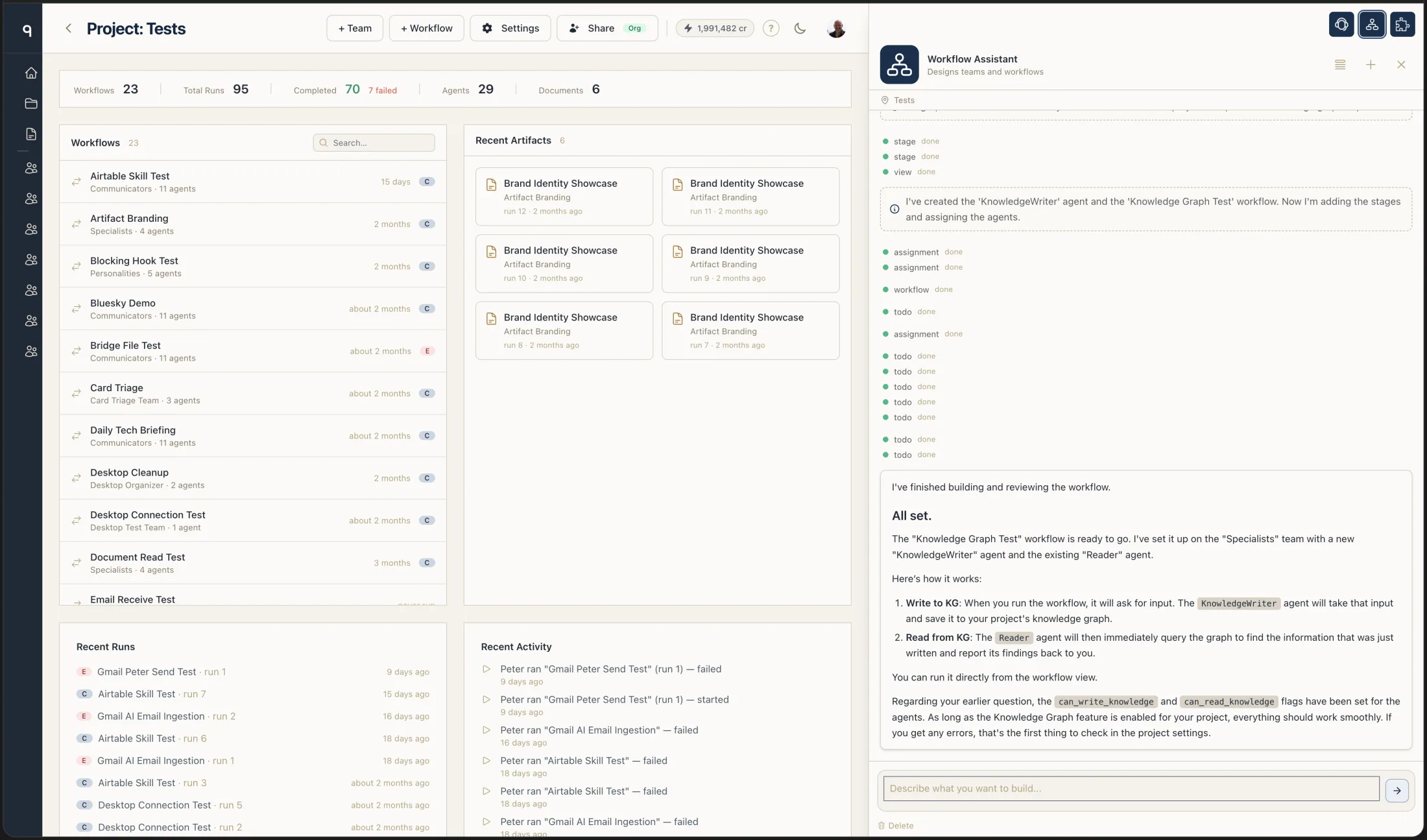
Open your project, then open the chat drawer — click the chat handle at the right edge of the screen or press ⌘J. On a project page the Workflow Assistant is pre-selected, so the drawer opens straight into it, with its name shown as the title above the conversation. You can also type into the project's AI Assistant sidebar widget to start the same conversation inline.
The drawer header is a row of avatar icons — one per assistant. Clicking another avatar switches to it; see How the chat drawer chooses its agent for the full picker behavior.
2. Describe what you want to build
Type a message describing the team or workflow you have in mind. The assistant understands the full ORQO data model — projects, teams, agents, workflows, stages, assignments, triggers, tools, and skills.
Example prompts:
- "Create a research team with two agents: a researcher and a writer"
- "Build a workflow that scrapes a URL, summarizes the content, and writes a blog post"
- "Add a cron trigger to the content pipeline workflow that runs every Monday at 9am"
Be specific. Say what each agent should do, which tools it needs, and how the stages connect. The more concrete your description, the closer the first build lands to what you want.
3. Answer its questions as it builds
The assistant reports progress as it works and pauses to ask when it needs a decision — which LLM a team should use, which tools an agent needs, how stages should be ordered, whether the workflow should await user input. Answer naturally; it interprets your reply and continues. You watch the team or workflow take shape live in the builder while it works.
4. Review, validate, and run
When it finishes, review what it built — open the Team Builder or Workflow Builder to see the agents, assignments, and stage flow, and edit anything directly. You can also drive validation and execution from the chat: "Validate the content pipeline workflow", "Preview the execution plan", "Run the workflow".
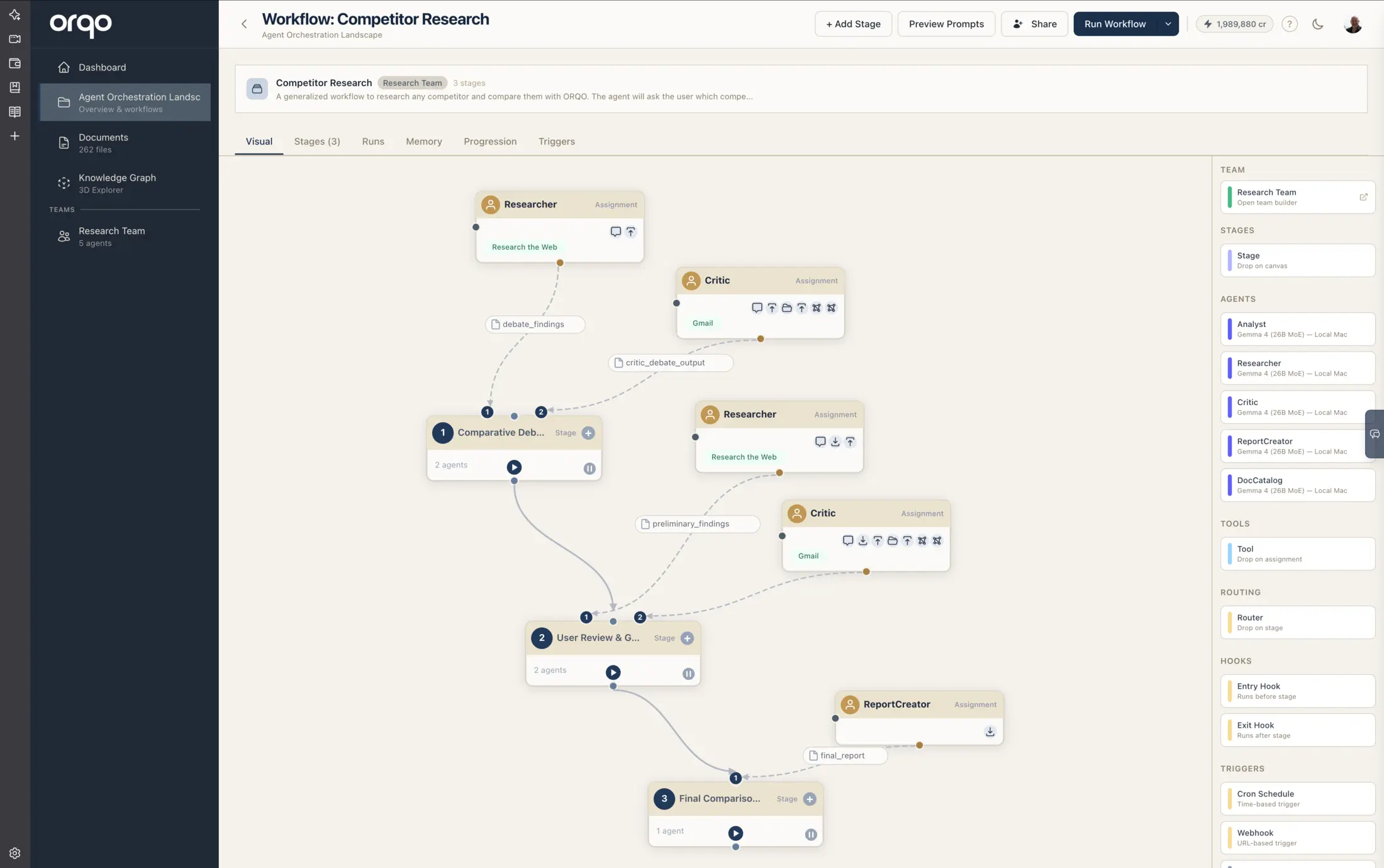
Conversations are persisted — return to a previous one from the conversation list, start a new one for a different task, or delete old ones you no longer need.
What's next
- Build a Team to understand the manual team configuration
- Create a Workflow to learn workflow structure in detail
- Run a Workflow to execute what the assistant built
Learn more
- Workflow Assistant — the full reference: everything the assistant can build, analyze, and run
- Reference: Projects