 Workflow Assistant
The Workflow Assistant is your project's AI workflow designer. You describe what you want to automate in plain English, and it builds the team, the agents, the workflow, the stages, and the assignments — wiring up tools, LLMs, and data flow as it goes. When you want to run, validate, or improve a workflow, it does that too.
It is project-scoped — every Assistant conversation lives inside one project and only sees that project's resources.
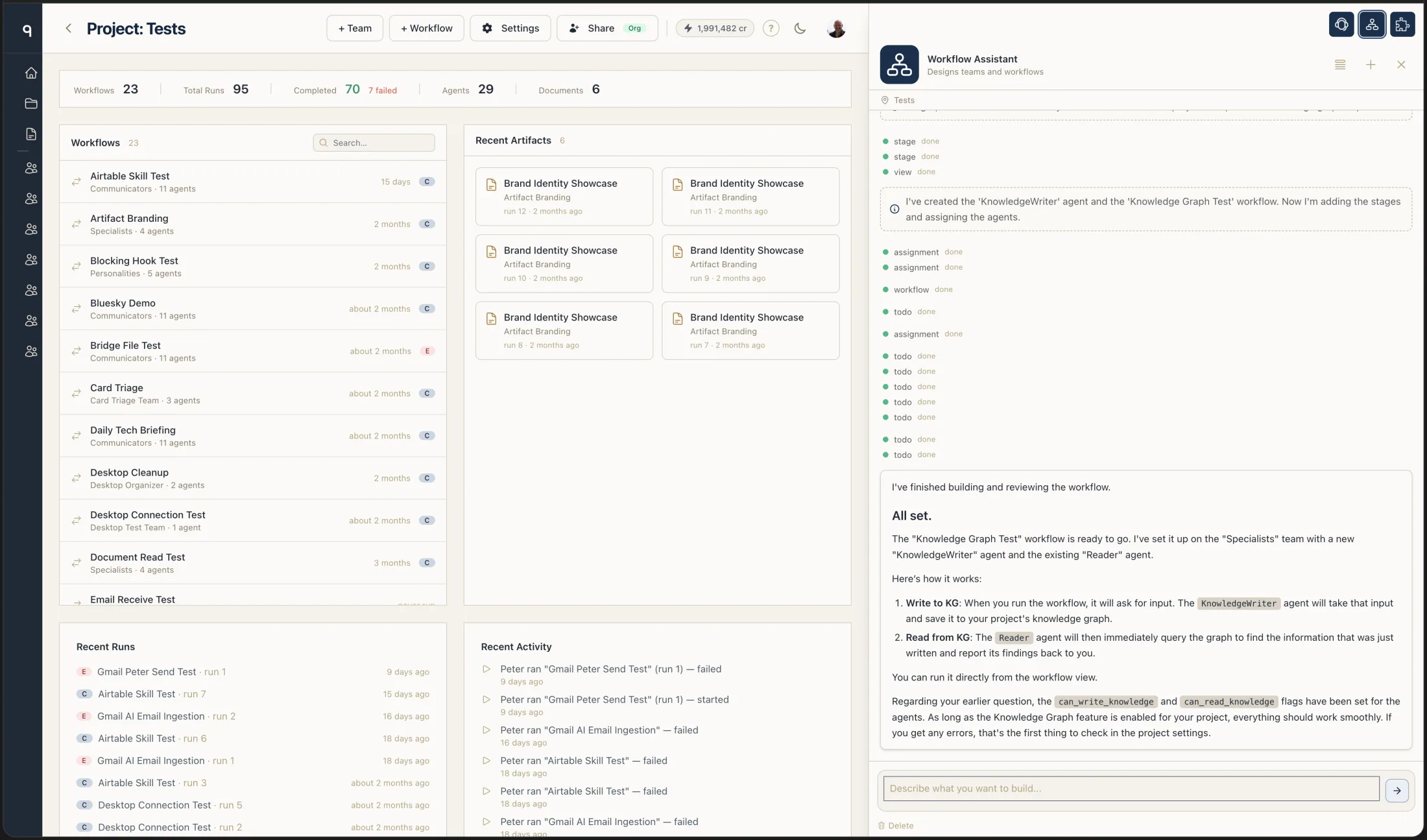
When to Use It
Reach for the Workflow Assistant when you want to:
- Build a workflow from a description — "Create a research pipeline that scrapes a URL, summarizes it, and writes a blog post" and watch it come together.
- Design a team — teams, agents, perspectives, LLM choices, skills — all through conversation.
- Modify an existing workflow — add a stage, reorder assignments, swap an LLM, change an agent's instructions, wire in a new tool.
- Validate before running — have it check your workflow end-to-end and tell you what's missing.
- Analyze past runs — ask why a run was slow, which stage consumed the most tokens, what changed between two runs, which model might be cheaper.
- Run the workflow — preview the final configuration, then start the run from the chat.
- Schedule a workflow — set up cron-based triggers without leaving the conversation.
It is not the right place to:
- Answer factual questions, research topics, or recall knowledge graph memory — that's the Chief of Staff.
- Add brand-new platforms or capabilities to your organization (Stripe, Notion, Linear, a new MCP server, a new credential, a custom Python tool) — that's the Integration Builder. The Assistant routes every capability request through Integration Builder, which decides the shape and (when Python is the right answer) calls the Tool Builder internally.
If you ask the Assistant to do one of those, it will tell you plainly and point you to the right place.
How to Open It
The Workflow Assistant is available whenever a project is open. You have two ways in:
- Sidebar chat widget. Inside any project, the sidebar shows an "AI Assistant" widget with an input bar and recent conversations. Type a message and it opens the conversation in the sidebar.
- Chat drawer. Click the chat handle at the right edge of the screen (or press
⌘J), then click the Workflow Assistant avatar in the drawer header. On a project page it's pre-selected, so the drawer usually opens straight into it.
The Workflow Assistant icon only lights up while a project is open. Off-project it's dimmed with a tooltip — "Open a project to chat with the Workflow Assistant" — because the Assistant only works inside a project's scope. Open any project and you can click its avatar from any page.
The drawer pre-selects the Workflow Assistant on project, team, workflow, stage, and run pages, but you can switch to any other assistant — or back — with one click on its avatar. See How the chat drawer chooses its agent for the full picker behavior.
The Live Builder
While you talk to the Assistant, it can render a live visual builder in your main content area — either the Workflow Builder or the Team Builder. The builder updates in real time as the Assistant creates or modifies entities. You can watch a workflow take shape stage by stage.
You can also keep clicking around the dashboard while the chat stays open. When the Assistant uses a tool that has a natural landing page (the runs view, the tools page, the credentials settings, and so on), the main view auto-navigates there so you're looking at what the Assistant is looking at.
The Workflow
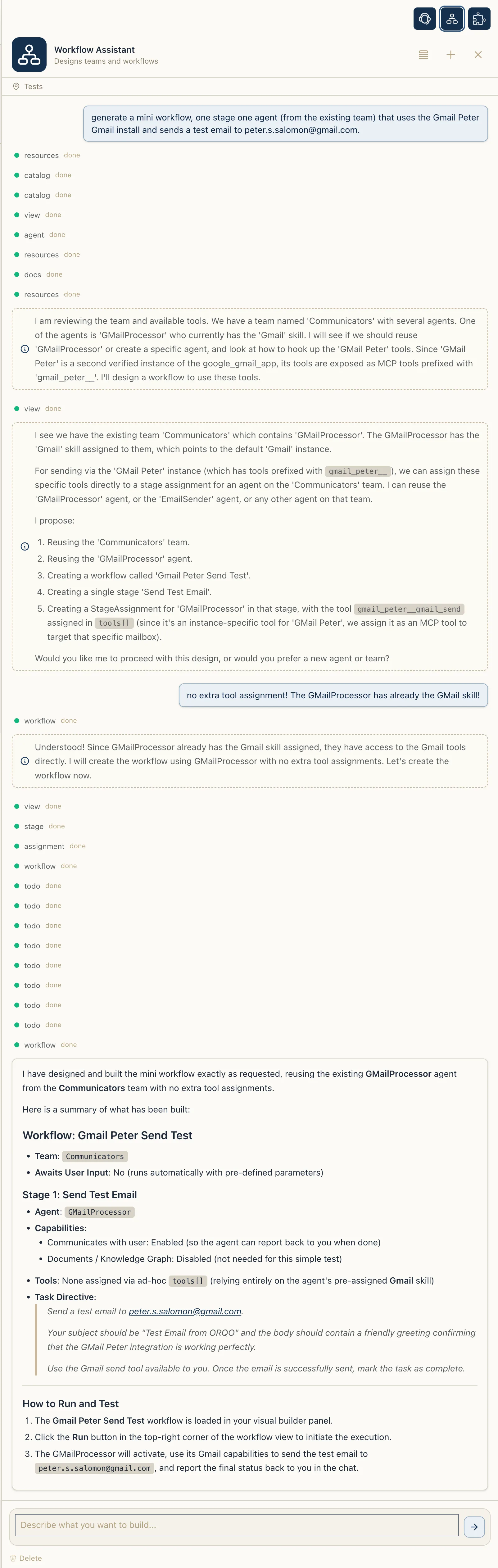
The Assistant follows a consistent design protocol. You'll see it work through the steps, narrating progress as it goes — like the full conversation on the right, which builds and explains a workflow end to end.
1. Understand
It clarifies what you want. If the request is vague, it asks a focused question before starting. "Should this run on a schedule or on demand?" "Should the writer publish to Slack, or just save a draft?"
2. Research
Before designing, it pulls from its knowledge base. It has seven on-demand references:
- Workflow patterns — sequential pipeline, multi-agent discussion, finalizer, observer
- Agent design — how to write a perspective, a task directive, and grounding guardrails
- Data pipeline — how data flows between stages with shared results and stage data
- LLM selection — which model for which task, and how to balance cost against capability
- Tools and skills — core tools, custom tools, MCP tools, and when to bundle them into a skill
- Stage configuration — summary modes, hooks, runtime, max cycles
- Worked examples — complete example workflows you can adapt
3. Check resources
It looks at what your project already has: which LLM configurations are available, what custom tools exist, which MCP servers are connected, which skills are installed, which runtimes are configured, and which credentials are set.
If something essential is missing — for example, no LLM configuration at all — it tells you what to add before going further.
4. Propose
For any non-trivial design, the Assistant stops and shows you a plan:
- Team name and the LLM it will use, with reasoning
- Each agent's name, perspective, and key flags
- Each stage's name, assigned agent, tools, and data flow
- Any credentials you need to add
You approve or adjust. No silent building.
5. Build
After approval it builds in order: team first, then agents, then workflow, then stages, then assignments, then triggers. You watch the builder update live. If the project has knowledge graph memory enabled, it can assign the Long-Term Memory skill to agents that need persistent domain knowledge.
6. Validate
The Assistant always runs validation after building or editing a workflow. Validation checks the team, stages, assignments, tools, credentials, runtimes, skills, and data flow end-to-end. If anything is broken or incomplete, validation returns a list of issues and the Assistant fixes them before telling you the workflow is ready.
7. Preview, run, schedule
Once validation passes, the Assistant can:
- Preview — show you the final engine configuration so you can see exactly what will execute.
- Run — start a workflow run directly from the chat. You don't need to navigate anywhere.
- Schedule — create a cron-based trigger so the workflow runs on its own.
8. Report
It ends with a plain-language summary: what was built or changed, what the workflow does, what's next. The Assistant always finishes a turn with a text message — it doesn't leave you staring at a silent chat after a burst of tool calls.
What the Assistant Can Do
Here is the full set of capabilities available today.
Build
- Create, update, delete, and list teams — including LLM config assignment.
- Create, update, delete, and list agents — with perspective, self-description, observer flag, LLM override, stage phase, and compaction preset.
- Assign and remove skills on an agent — including organization skills and installed marketplace skills.
- Create, update, delete, and list workflows — with descriptions and the
awaits_user_inputtoggle. - Create, update, and delete stages — with summary mode, documents, hooks, runtime, max cycles, outcomes, and outcome routing.
- Create, update, reorder, and delete stage assignments — wiring agents to stages with task directives, tools, data-pipeline capabilities, and per-assignment flags (user-facing, spawns subagents, triggers workflows, creates artifacts, reads/writes stage data, accesses documents).
- Create, update, toggle, and delete triggers — cron schedules with timezones, custom names, and optional input payloads.
Run and analyze
- Validate a workflow end-to-end before running.
- Preview the final engine configuration.
- Start a run directly from the chat.
- List recent runs with status, timing, and session IDs.
- Per-run metrics — per-stage token usage, duration, tool calls, and failures.
- Conversation replay — replay the agent messages and tool calls from a completed run to understand how it actually executed.
- Progression analysis — compare consecutive runs and surface improvements and regressions, ranked by magnitude, with config diffs when the workflow changed between runs.
- Version history — list config snapshots with field-level diffs.
Explore resources
- List LLM configurations configured in your organization, with pricing, context window labels, and capability badges.
- Browse all available LLM models — not just the ones your org has configured. Filter by provider or capability, compare models side by side, or ask for a recommendation based on constraints ("cheapest with tool support and more than 100K context").
- List custom tools, skills, MCP tools, runtimes, and credentials in scope.
Delegate
- Delegate to the Integration Builder for any capability request — a new Python tool, a new credential, a new MCP server, or a brand-new platform. The Assistant hands over a specification, Integration Builder picks the right shape and (when Python is the answer) calls the Tool Builder internally, then reports back. The Assistant continues where it left off — now able to add the new tool to a stage assignment, attach the new credential to the right skill, or assign the new skill to an agent.
- Hand off to the Chief of Staff or Integration Builder if a question turns out to be out of scope. Instead of refusing, the Assistant can transfer the conversation: its turn ends, the chat drawer swaps to the right specialist, your reformulated request lands in their conversation, and the main view navigates to the specialist's home page. When the specialist finishes — or decides to hand back — the original Assistant thread is resumed with full prior history, so design work picks up exactly where it left off. The full journey is preserved as one continuous timeline with separators marking every agent change (see Cross-agent handoff).
UX
- Live visual builders — show the workflow or team builder in your main view while you chat.
- Auto-navigate to relevant pages (runs, tools, credentials, skills, MCP servers) when a tool call produces a result worth looking at.
- Maintain a to-do list — validation automatically populates a checklist of review items you can work through.
- Ask questions when it needs input, with a clear signal that the turn has ended and it's waiting for you.
Auto-Analyze: Reflection After Every Run
The Workflow Assistant powers an optional auto-analyze feature that kicks in automatically when a workflow run completes. You enable it per-workflow with two checkboxes on the workflow settings page:
- Auto-analyze — when on, the Assistant analyzes every completed run.
- Discuss improvements — when on, the Assistant produces an improvement plan you can review before any changes are applied.
When discuss improvements is off, the Assistant runs autonomously after each completed run: it checks metrics, reviews the conversation, and applies clear improvements directly. Ambiguous or risky changes are described but not applied.
When discuss improvements is on, the Assistant runs in read-only mode and saves the analysis as an improvement plan attached to the run. You see a "Discuss Improvements" button on the run detail page — clicking it opens the analysis in the chat, where you can review it and continue the conversation with the Assistant.
Conversation Memory
Every Assistant conversation is persisted. You can leave a conversation, come back hours or days later, and continue from where you left off. The Assistant sees the full project state — not the frozen view from when you last talked — so if you changed something outside the chat, it catches up.
Each conversation's title is taken from your first message (truncated to about 60 characters), so the history list reads like a record of the questions you actually asked. You can browse past conversations from the sidebar widget or the project's AI conversations page, and delete any you no longer need.
If a conversation crosses agents through a handoff, the chat history view stitches the source and target conversations into one continuous timeline with horizontal separators marking every agent change in both directions — for example, ── Integration Builder takes over ── on the way out and ── Workflow Assistant takes over ── on the way back. You see the whole journey across agents in one window, not three disconnected chats.
Scope — What It Won't Do
The Workflow Assistant is clear about what it is not. If you ask it for one of these, it points you to the right place instead of faking it.
- It is not a researcher. It has no web access, no knowledge graph read access, and no organization-wide visibility beyond the current project. Research questions, factual lookups, and memory recall belong to the Chief of Staff.
- It does not write Python and does not call the Tool Builder directly. Every capability request — new tool, new credential, new MCP server, new platform — is routed through the Integration Builder, which picks the right shape and calls the Tool Builder internally when Python is the answer.
- It does not add new platforms to your organization itself. If you want to integrate Stripe, Notion, Linear, or any platform that's not already connected, the Assistant hands off to Integration Builder.
- It does not create credentials. When a tool or MCP server needs an API key, the Assistant (or Integration Builder, on its behalf) tells you exactly what to add — credential key, category, where to get the secret — and waits for you to add it in Settings → Credentials.
Privacy
The Assistant never shows database IDs or internal identifiers in conversation. Every resource — teams, agents, workflows, stages, tools, skills, credentials — is referred to by its human-readable name. You see names, not numbers.
Screenshots
Screenshots of the live visual builders updating mid-conversation, and of the run analysis flow, are still pending.
Related
- Chief of Staff AI — the org-level front desk that handles inbound messages and organization-wide tasks
- Integration Builder AI — adds new platforms (Stripe, Notion, and so on) to your organization
- Tool Builder — the AI software engineer that writes Python tools (called by Integration Builder, not directly by the Assistant)
- Use the AI Assistant — step-by-step guide for your first Assistant conversation
- Workflows reference — the full workflow data model the Assistant operates on
- Teams and Agents — the team and agent concepts the Assistant works with
- Running Workflows — how runs, validation, and previews work