Connect Document Sources
Document sources automatically sync files from external platforms into your project's document library. Instead of uploading files manually, you connect a source -- a GitHub repository, a Google Drive folder, or a local directory -- and ORQO keeps your documents in sync.
When Long-Term Memory is enabled on the project, synced files are automatically classified into the knowledge graph. Your graph grows every time a source syncs new or updated content.
Prerequisites
- An existing project (see Create a Project)
- For app-backed sources: the relevant App must be installed and verified (e.g., GitHub, Google Drive)
- For runtime-backed sources: a runtime must be available and running (e.g., ORQO Desktop App or an SSH runtime)
Source Types
Document sources come in two kinds:
App-Backed Sources
Connect to external platforms through installed Apps. The App's adapter handles authentication, file enumeration, and content fetching.
| Platform | Resource Path Format | Example |
|---|---|---|
| GitHub | owner/repo or owner/repo:subpath/ | octocat/hello-world:docs/ |
| Google Drive | Google Drive folder ID | 1BxiMVs0XRA5nFMdKvBdBZjgmUUqptlbs74OgVE2upms |
Runtime-Backed Sources
Sync files from any directory accessible through a runtime -- a local workspace (via the ORQO Desktop App) or a remote server (via SSH).
| Runtime Type | Resource Path Format | Example |
|---|---|---|
| Desktop App | Absolute path on local machine | /Users/alice/Research/papers |
| SSH | Absolute path on remote server | /var/data/reports |
Runtime-backed sources use shell commands (find, md5sum, cat) to enumerate and fetch files. No adapter or App is required -- the runtime itself provides file access.
Steps
1. Open the Documents page
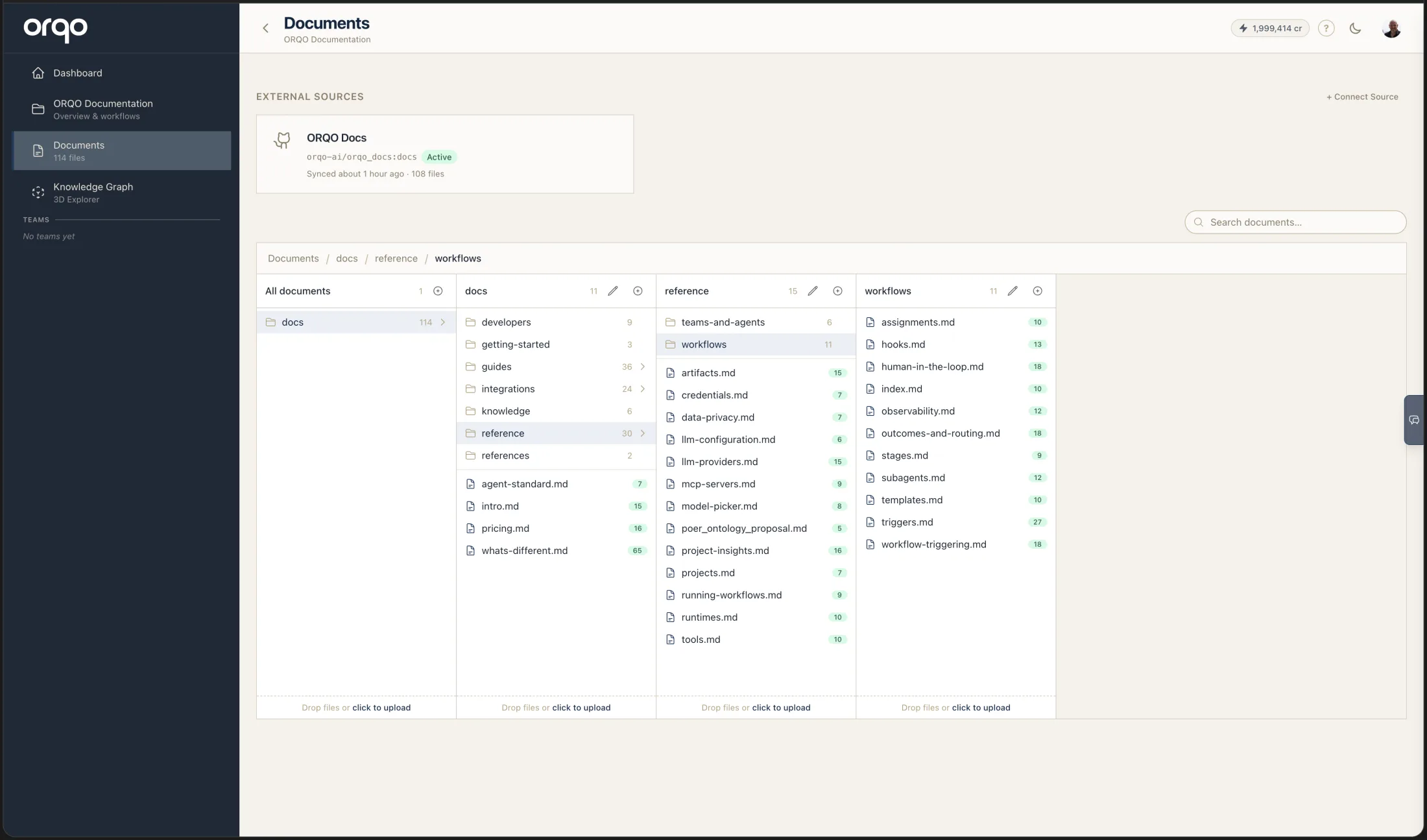
Navigate to your project and click Documents. At the top of the page, above the document browser, you'll see the External Sources section, with a + Connect Source button on the right. Any connected source appears here as a card showing its resource path, status, and last sync.
2. Click "Connect Source"
Click the + Connect Source button to expand the connection form.
3. Choose the source type
Select whether you are connecting an App (GitHub, Google Drive) or a Runtime (Desktop App, SSH).
For App-backed sources, select the App from the dropdown. Only verified Apps with adapter URLs are listed.
For Runtime-backed sources, select the runtime from the dropdown. Only active (running or stopped) runtimes are listed.
4. Configure the source
Fill in the connection details:
| Field | Required | Description |
|---|---|---|
| Name | Yes | Display name for this source (e.g., "Product Docs", "Research Papers") |
| Resource Path | Yes | Where to find the files -- depends on source type (see tables above) |
| Target Folder | No | Destination folder in your document library. Files are organized under this path. |
| Sync Interval | Yes | How often to check for changes (15 minutes to 24 hours, default: 1 hour) |
| File Filter | No | Glob pattern to sync only specific files (e.g., *.md, *.txt,*.pdf) |
The target folder preserves the source's directory structure underneath it. For example, if your GitHub repo has docs/guide.md and your target folder is github/my-repo, the document appears at github/my-repo/docs/guide.md in your library.
5. Save and sync
Click Create. ORQO immediately triggers the first sync. Depending on the number of files, this may take a few seconds to a few minutes.
You can see the sync progress on the source card:
| Status | Meaning |
|---|---|
| Active | Source is healthy and syncing on schedule |
| Paused | Sync is paused -- click Resume to restart |
| Error | Last sync failed -- hover the card for the error message |
6. Monitor synced documents
Synced files appear in your document library under the target folder (or at the root if no target folder was set). Each document shows its origin -- the source name and the file path within the external resource.
If Long-Term Memory is enabled, synced documents go through the classification pipeline automatically. Watch the classification status badges to track progress.
How Sync Works
Document sources use a poll-based sync strategy:
- On schedule -- Every 5 minutes, a sweeper job checks which sources are due for sync (based on their sync interval and last sync time).
- File enumeration -- The source lists all files at the resource path, collecting a fingerprint (hash) for each file.
- Change detection -- Fingerprints are compared with previously synced documents. Only new and modified files are fetched.
- Fetch and upload -- Changed files are downloaded and stored in ORQO's document storage.
- Classification -- If the project has Long-Term Memory enabled and the file type is classifiable (text, Markdown, PDF, etc.), the document is sent through the classification pipeline.
Deleted files at the source are logged but not automatically removed from your library. Documents and their knowledge graph entries are preserved until you manually delete them.
Deleting a synced document from your library (via the document viewer's Delete button) never removes it from the external source. For runtime sources (Desktop App, SSH) the file re-appears on the next sync; for app sources (GitHub, Google Drive) the deletion sticks. See Delete a document for how to permanently exclude a synced file.
What gets imported
Not every file at a source becomes a document. Size and type limits decide what comes through, so some files won't appear in your library:
- Documents -- PDFs, slide decks (PowerPoint), and Word and Excel files import up to 100 MB. The generous ceiling means image-heavy decks come through.
- Large media -- video and audio files (for example, a Google Meet recording) are not imported above 10 MB. They have no extractable text, so they wouldn't add anything to your library or knowledge graph.
- Google Docs, Sheets, and Slides always import, regardless of the original's size -- they are exported to text first.
For a synced Google Meet folder, the meeting notes and transcripts (Google Docs) import even when the large video recording is skipped.
Managing Sources
Pause and Resume
Click a source card to open the detail drawer, then click Pause to stop syncing. Resume clears any error state and triggers an immediate sync.
Manual Sync
Click Sync Now in the source drawer to trigger an immediate sync outside the regular schedule. This is useful after you know files have changed and don't want to wait for the next interval.
Edit Settings
Update the name, target folder, sync interval, or file filter through the source drawer. The resource path cannot be changed after creation -- delete and recreate the source if you need a different path.
Delete a Source
Deleting a source stops all future syncing. Documents already imported from the source remain in your library -- they are not deleted. Their knowledge graph entries are also preserved.
Example: Sync a GitHub Repository
- Install and verify the GitHub App with a Personal Access Token.
- Navigate to your project's Documents page.
- Click + Connect Source, select GitHub as the App.
- Set the resource path to
your-org/your-repo:docs/to sync only thedocs/directory. - Set the file filter to
*.mdto sync only Markdown files. - Set the target folder to
github/your-repo. - Click Create.
Files sync immediately and then on the configured interval. New Markdown files committed to the repo's docs/ directory are automatically imported and classified.
Example: Sync a Local Directory via the ORQO Desktop App
- Set up the ORQO Desktop App and add a workspace (e.g.,
~/Research/papers). - Navigate to your project's Documents page.
- Click + Connect Source, select the Desktop App runtime for your workspace.
- Set the resource path to the directory you want to sync (e.g.,
/Users/alice/Research/papers). - Set the file filter to
*.md,*.txt,*.pdfif you only want specific file types. - Click Create.
The app reads files from your local directory, uploads them to ORQO's storage, and classifies them into the knowledge graph. When you add or modify files locally, the next sync picks up the changes.
What's Next
- Manage Documents for the full document library guide
- Long-Term Memory to understand how synced documents feed the knowledge graph
- Set Up the ORQO Desktop App for local directory access
- GitHub for GitHub App setup details