Run a Workflow
Start a manual workflow run, watch agents work through stages in real time, and read the results.
Prerequisites
- A workflow with stages and agent assignments (see Add Stages and Set Up Assignments)
- The assigned team has an LLM configuration (see Configure an LLM)
- Any required credentials are configured (see Add a Credential)
Steps
1. Open the workflow
Navigate to your project and open the workflow you want to run.
2. Go to the Runs & Triggers tab
Click the Runs & Triggers tab (tab 2). The bottom section shows the run history table. If the workflow has never been run, this table is empty.
3. Start a new run
Click the Run Workflow button. If the workflow has "Awaits User Input" enabled, a text field appears where you enter a task description or instructions for this particular run. Otherwise, the run starts immediately.
Use the task description to provide specific context for this run. For example, a content pipeline might accept a topic: "Write a guide about Kubernetes networking". The task description is passed to the first stage as input.
4. Watch the run execute
After starting, the run appears at the top of the history table with a running status badge. The page updates in real time via Turbo Streams as the workflow progresses.
5. Follow the event timeline
Click the run row to expand it and see the event timeline. Events appear chronologically as each stage executes:
| Event type | What it means |
|---|---|
| Stage started | An agent began working on a stage |
| Tool use | An agent called a tool (web search, code execution, etc.) |
| Agent output | An agent produced intermediate or final output |
| Stage completed | A stage finished with a result |
| Routing decision | An outcome routed execution to a specific stage |
| Run completed | All stages finished successfully |
| Run error | Something went wrong (agent error, tool failure, timeout) |
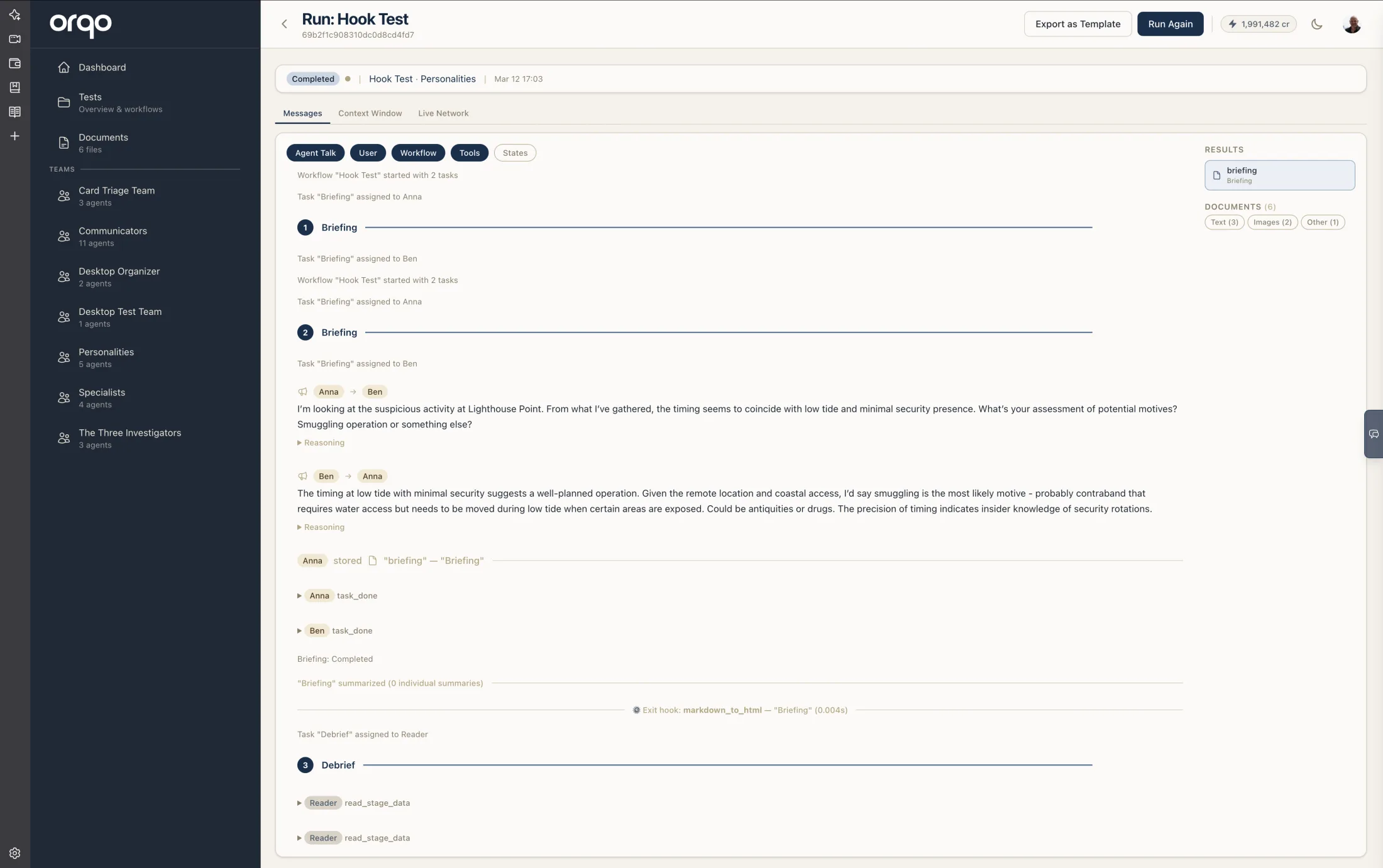
6. Read stage results
Each completed stage shows its output in the event timeline. The output format depends on the stage's summary mode:
- Full -- Complete agent output preserved
- Condensed -- Compressed summary of the output
- None -- Output not included in the timeline (used for stages that pass data via tools)
7. Check the final status
When the run finishes, the status badge updates to one of:
| Status | Meaning |
|---|---|
| Completed | All stages executed successfully |
| Stopped | The run was manually stopped |
| Error | A stage or agent encountered an error |
8. Stop a running workflow
If a run is taking too long or you need to abort, click the Stop button on the running workflow. The platform halts execution after the current agent cycle completes.
9. Re-run a workflow
To run the same workflow again, click Run Workflow again. Each run is independent -- previous runs are not affected and remain in the history for review.
10. Re-run from a specific stage
When iterating on a multi-stage workflow, you often do not need to re-run the entire thing from scratch. After a run has completed, stopped, or errored, you can pick up from any stage:
- Open a finished run (completed, stopped, or error status).
- In the event timeline, hover over the stage divider for the stage you want to start from. A Re-run from here button appears on the right side of the divider.
- Click the button.
ORQO creates a new workflow run that:
- Starts execution at the selected stage -- all earlier stages are skipped.
- Inherits shared memory from the original run's prior stages -- stage results and data that earlier stages produced are carried forward.
- Inherits task summaries -- agents in the new run have full context about what happened in the stages before the starting point.
The new run then continues through the remaining stages to the end, just like a normal run.
This is especially useful for debugging. If a run errored at stage 4 of 6, fix the issue and re-run from stage 4 instead of waiting for stages 1--3 to execute again.
The original run is never modified. Re-running from a stage always creates a separate run with its own history and results.
What's next
- Monitor Runs to review past runs and diagnose issues
- Schedule Workflows to automate recurring runs
- Use Outcome Routing if you need conditional logic