LLM Assignment
Every agent needs access to a Large Language Model (LLM) to function. The platform uses a two-level hierarchy for LLM assignment: a team-level default and optional agent-level overrides. This keeps configuration simple for homogeneous teams while allowing fine-grained control when different agents need different models.
The Hierarchy
Team LLM (default for all agents)
  └── Agent LLM Override (optional, per agent)
Team-Level Default
When you create or edit a team, you assign an LLM Configuration to it. This becomes the default model for every agent on the team. In most cases, this is all you need -- every agent uses the same model and API key.
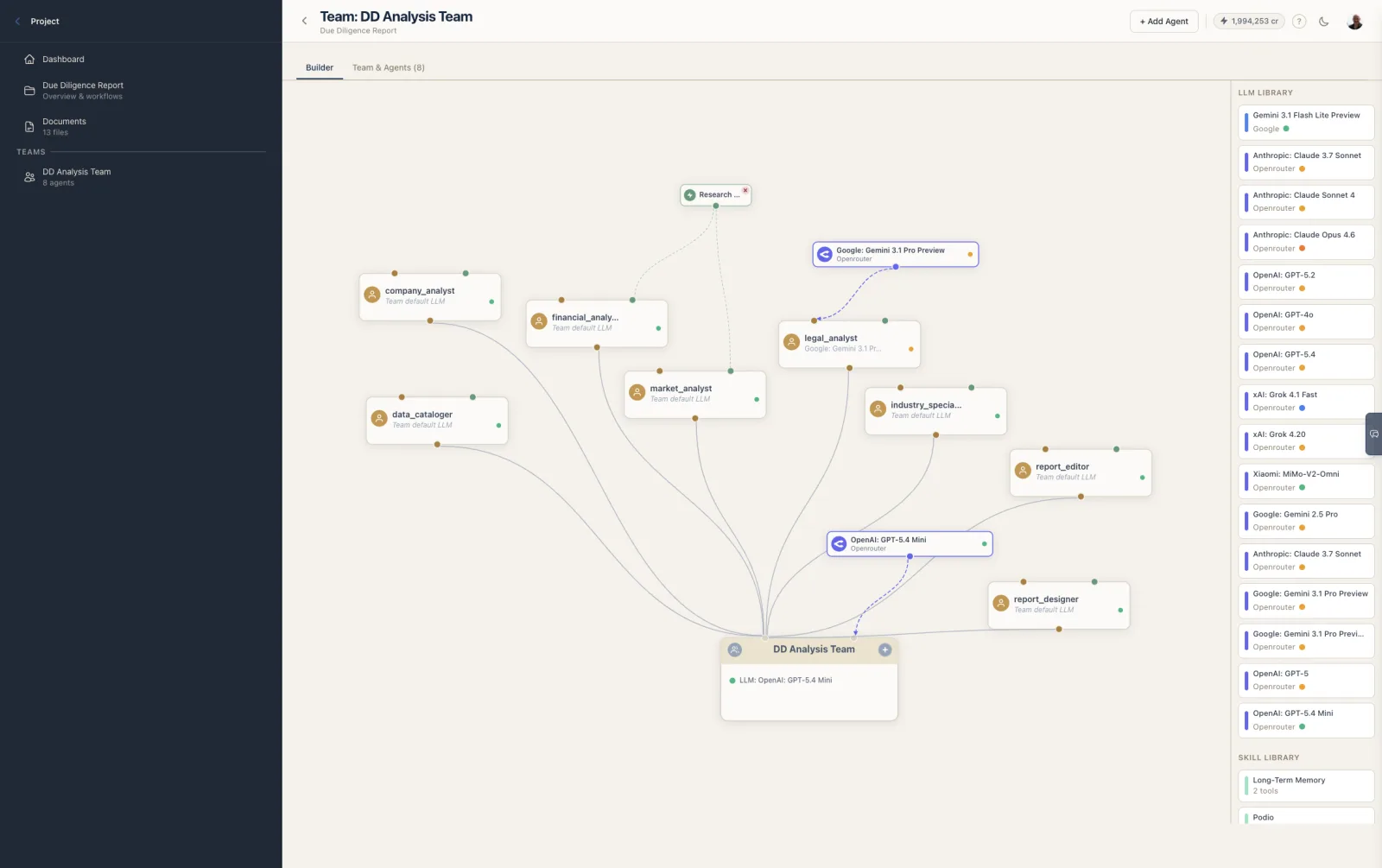
The team's LLM is displayed on the team node in the Team Builder and listed in the team header on the card-based editor.
Agent-Level Override
Any individual agent can override the team default by setting its own LLM Configuration. When an override is set, that agent uses its own model instead of the team's default.
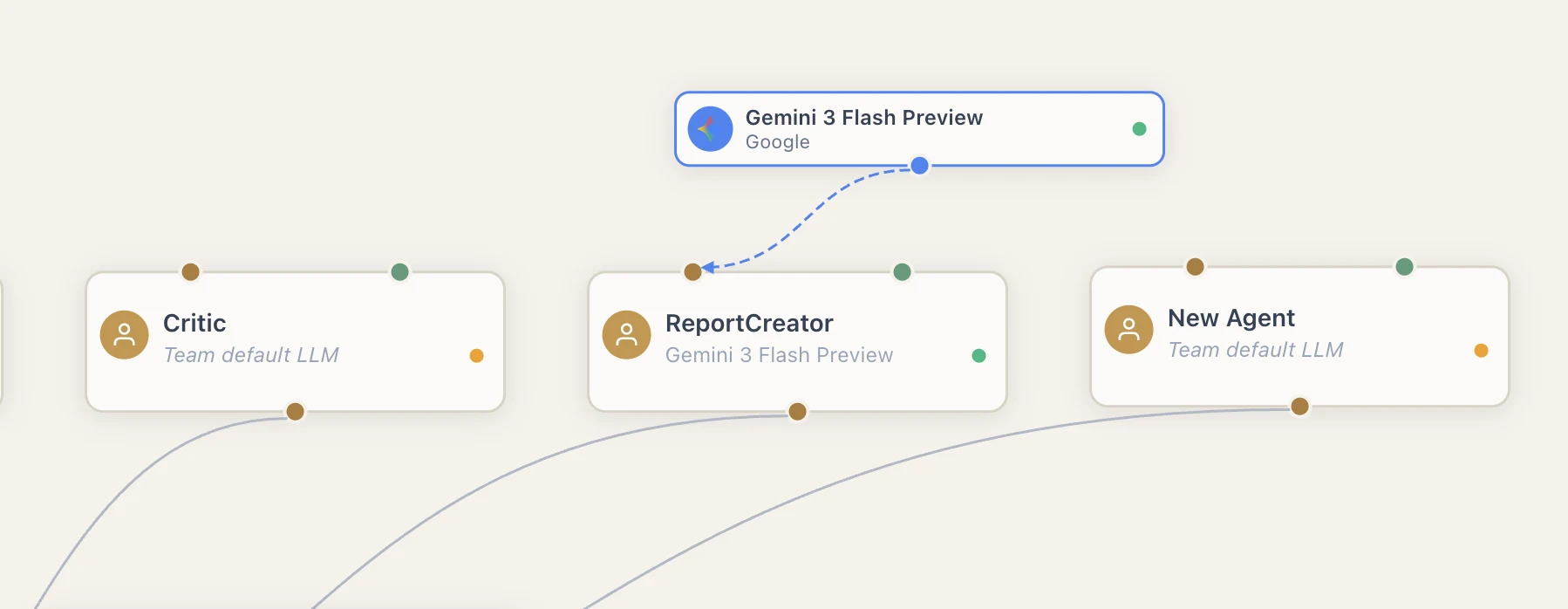
In the Team Builder, agent overrides are visualized as separate LLM nodes connected directly to the agent, while agents using the team default are connected to the same LLM node as the team.
How the Hierarchy Resolves
When the platform starts a conversation with an agent, it resolves the LLM using this logic:
- Check if the agent has its own LLM configuration set.
- If yes, use the agent's LLM configuration.
- If no, use the team's LLM configuration.
There is no further fallback. If neither the agent nor the team has an LLM assigned, the agent cannot function.
If the team has no LLM configuration and an agent has no override, the platform will raise an error when attempting to run that agent. Always ensure at least the team-level LLM is configured before running workflows.
What an LLM Configuration Contains
An LLM Configuration (see LLM Configuration) links three things together:
| Component | Description |
|---|---|
| LLM Model | The specific model to use (e.g., gpt-4o, claude-sonnet-4-20250514, gemini-2.0-flash) |
| Credential | The API key used to authenticate with the provider |
| Provider | Derived from the model -- determines the API endpoint and request format |
The resolved LLM model also provides the context window size, which the platform uses for compaction calculations.
Assigning LLMs in the Team Builder
The Team Builder sidebar has an LLM Library section showing all LLM configurations available to the organization. Each card shows the provider, model name, and a color-coded accent bar.
| Action | Result |
|---|---|
| Drag LLM onto team node | Sets the LLM as the team default |
| Drag LLM onto agent node | Sets the LLM as an agent override |
| Drag LLM onto canvas | Creates an unlinked LLM node; draw a link to a team or agent |
When you assign an LLM to a team, all agents that were using the previous team default automatically pick up the new model. Only agents with explicit overrides are unaffected.
When to Use Agent Overrides
Most teams work well with a single LLM for all agents. Consider agent-level overrides when:
- Cost optimization -- Use a powerful model (e.g., Claude Opus) for complex reasoning agents and a lighter model (e.g., Claude Haiku) for simple data-fetching agents.
- Capability matching -- Some agents need vision capabilities, long context windows, or specific tool-calling behavior that only certain models provide.
- Provider diversity -- Mix providers (e.g., OpenAI for code generation, Anthropic for analysis) to leverage each provider's strengths.
- Testing -- Temporarily assign a different model to one agent to compare output quality without affecting the rest of the team.
Viewing the Resolved LLM
In the Team Builder, each agent node displays the name of its resolved LLM:
- Agents using the team default show the team's LLM name in a muted style.
- Agents with overrides show their own LLM name with a distinct visual treatment.
In the Workflow Builder, assignment nodes show the agent name and badges but do not display the LLM -- that configuration lives on the team side.
Context Window and Compaction
The resolved LLM model determines the context window size, which directly affects compaction behavior. When an agent's compaction preset triggers summarization, the platform checks:
- The model's context window size (determined from the provider's model metadata).
- The compaction preset's thresholds (trigger count, recent messages kept).
A model with a larger context window allows more messages before compaction kicks in, regardless of the preset. Conversely, a small-context model will compact more frequently even with the "careful" preset.
If you switch an agent from a large-context model to a small-context model mid-project, existing conversation histories are not retroactively compacted. The new compaction behavior applies from the next run onward.