 Integration Builder AI
Integration Builder is your organization's AI integration engineer. When you need to connect ORQO to a new platform — Stripe, Notion, Linear, Airtable, your company's internal API — you describe what you need in plain English and Integration Builder plans the work, researches the platform, and builds it for you.
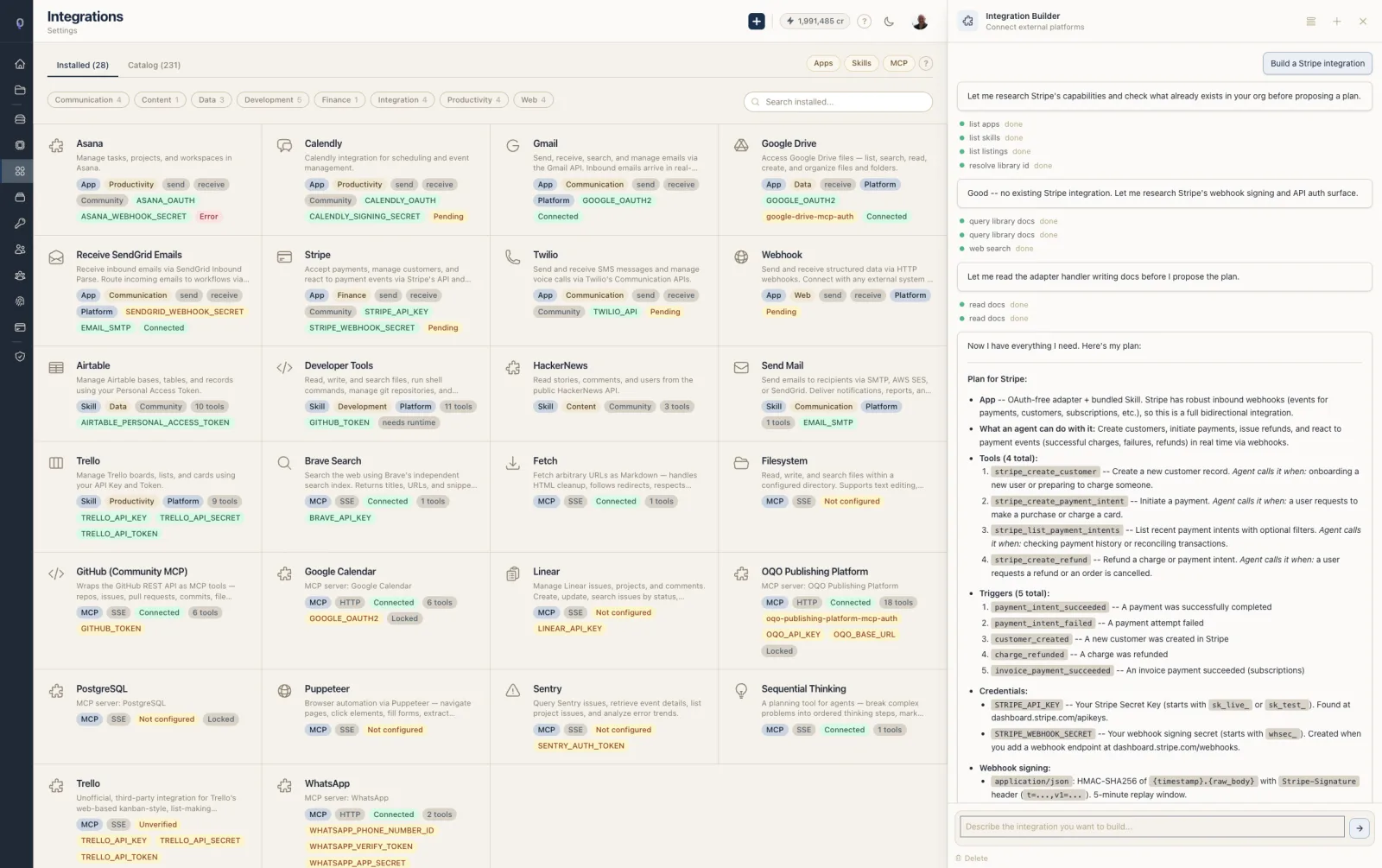
It never writes Python itself. When code is needed, it delegates to the Tool Builder, ORQO's AI software engineer, and waits for verified, saved results before moving on.
When to Use It
Reach for Integration Builder when you want to:
- Add a new platform to your organization (payments, CRM, calendar, storage, anything with an API)
- Explore what's already possible — it can list every tool, skill, MCP server, and credential you already have before proposing new work
- Research a platform without leaving ORQO — it queries official SDK documentation and the web
- Package a set of related tools into a single installable Skill for your team
- Publish a Skill privately (org-only), via a shareable link, or to the public marketplace
It is not the right place to write Python from scratch, review existing Python code, or run workflows. Those belong to Tool Builder, the dashboard editor, and the Chief of Staff, respectively.
How to Open It
Integration Builder lives in the chat drawer that appears on every page. Click the chat handle at the right edge of the screen (or press ⌘J), then click the Integration Builder avatar in the drawer header. Its icon is always available — you can reach it from any page, anytime.
The drawer pre-selects Integration Builder on Settings → Integrations, Settings → MCP Servers, Settings → Credentials, and Settings → Apps, so it usually opens straight into it there. On any other page, pick it with one click on its avatar. See How the chat drawer chooses its agent for the full picker behavior.
Integration Builder is org-scoped, so it sees every project, tool, skill, credential, and MCP server in your organization.
The Workflow
Integration Builder follows a structured workflow for every integration request. You'll see it work through the steps in real time, checking items off a to-do list as it goes.
1. Understand
It clarifies what platform you want to connect and what you actually need to do with it. Expect a short conversation — "Stripe for creating payment intents? Or for reconciling transactions?" — before any work starts.
2. Survey what already exists
Before proposing anything new, Integration Builder checks what's already in your organization:
- Is there already a Skill for this platform?
- Is there a platform-seeded listing you could install instead of building?
- Is the target already registered as an MCP server?
- Are relevant tools already defined?
Reuse beats rebuild. If something already covers your need, Integration Builder will say so and stop.
3. Research
Integration Builder has access to two research tools:
- Official SDK documentation — for libraries like the Stripe Python SDK or Notion's client, it queries the authoritative, current docs.
- Web search — for broader questions, recent changes, or platforms without a clean SDK.
4. Decide the shape
Not every integration is the same kind of thing. Integration Builder picks from four shapes:
| Shape | When it wins |
|---|---|
| Public MCP server | An official or well-maintained MCP already exposes what you need. Register it and you're done. |
| Native Python tool | Clean SDK, non-trivial logic, or the result should feed your long-term memory. Tool Builder writes the code. |
| App / channel | The platform sends or receives messages (Slack DMs, email, Telegram webhooks). |
| Bundle | You need both — channel delivery and tools that act on the platform. |
Integration Builder will tell you which shape it picked and why before it starts building.
5. Add credentials
If the integration needs API keys or secrets and they aren't already in your organization, Integration Builder will ask you to add them in Settings → Credentials. It tells you exactly what to add:
- The credential key (for example,
STRIPE_API_KEY) - The category (for example,
api_service) - Where in the platform's dashboard to get the secret
It waits for you to confirm before moving on. (See Current Limitations below — Integration Builder cannot create credential placeholders for you yet.)
6. Build (for native Python tools)
For each Python tool your integration needs, Integration Builder hands a complete specification to Tool Builder — name, purpose, parameters, credentials, test inputs — and Tool Builder writes the code, runs it through the 5-phase verification pipeline, and saves the finished tool. Integration Builder does not touch Python. If Tool Builder reports a verification error, Integration Builder relays it to you verbatim.
7. Bundle into a Skill
A pile of loose tools isn't an integration. Once the tools exist, Integration Builder groups them into a single installable Skill with:
- Name and description — what this integration does in one sentence
- Category — one of twelve: communication, web, development, data, content, finance, productivity, marketing, analytics, storage, ai, commerce
- Icon — a Heroicon that matches the platform (not the generic default)
- Knowledge — 2-to-5 sentences of usage guidance that gets injected into any agent's perspective when the Skill is assigned
- Credential keys — every secret the Skill needs
- Tool names — the tools grouped under the Skill
Bundling is idempotent — if validation finds something wrong, Integration Builder re-runs the bundler with corrected fields and the existing Skill is updated in place.
8. Validate
Before declaring done, Integration Builder runs a railguard that checks the Skill is truly publish-ready:
- Description is present and not a one-liner
- Category is valid
- Icon is specific to the platform (not the generic default)
- Knowledge field is substantive (real guidance, not a sentence)
- Every referenced tool exists
- Every required credential is attached
If any check fails, Integration Builder fixes it — either by re-bundling with better fields or by asking you for the missing input — and validates again. It will not tell you the integration is done until validation passes.
9. Publish (optional)
If you want to expose the Skill beyond your own organization, Integration Builder can promote it to an Integration Listing:
| Visibility | Who can see and install it |
|---|---|
| Private | Only your organization. Always safe. |
| Unlisted | Anyone with the direct link. Not discoverable through the marketplace. |
| Public | Submitted to the marketplace. Requires a developer profile and enters review before going live. |
Integration Builder will ask which visibility you want before publishing. For public listings, it warns you about the review flow — the listing enters in_review status and must be approved before it appears in the marketplace.
10. Report
At the end, Integration Builder summarizes exactly what was built: tools created, Skill bundled (or not), listing published (and at what visibility), credentials attached. It does not inflate. If only tools were created and no Skill was bundled, it says so.
What Integration Builder Can Do
Here is the full set of capabilities available today.
Discovery
- List existing tools — see what Python tools already live in your organization, with full details on request.
- List Skills — see every packaged integration, whether built by you, shipped by ORQO, or installed from the marketplace.
- List MCP servers — see every MCP endpoint already registered.
- List integration listings — see what's in your organization's catalog, including unlisted and platform-seeded entries.
- List credentials — see which secrets are configured and which are still missing values.
- List projects — confirm where a new tool should live before delegating.
Research
- Query official library docs — pulls live, authoritative documentation for SDKs and libraries.
- Search the web — for broader questions, recent changes, or context the SDK docs don't cover.
- Read its own knowledge base — four internal guides it can pull on demand: the end-to-end integration playbook, the decision matrix, the pre-flight checklist, and a reference that explains the difference between a Tool, a Skill, and a Listing.
Build
- Delegate Python tool creation to Tool Builder — one tool per request, with full verification before the result is saved.
- Bundle tools into a Skill — idempotent, so validator findings can be fixed by re-running with corrections.
- Validate a Skill — railguard that catches missing or weak fields before declaring done.
- Create an Integration Listing — publish a Skill at private, unlisted, or public visibility.
UX
- Navigate you to the right page in the dashboard when a result is ready to review.
- Maintain a live to-do list you can see update as each step completes.
- Ask questions when it needs input, with a clear signal that the turn has ended and it's waiting for you.
Current Limitations
Integration Builder will tell you plainly when something is outside its scope.
- It does not register MCP servers for you. It can detect that a public MCP would be the right fit and give you the registration details, but you register it yourself in Settings → MCP Servers.
- It does not create credential placeholders. When a new credential is needed, you add it yourself in Settings → Credentials before Integration Builder proceeds. It tells you exactly what key name, category, and source to use.
What changed (2026-04-25)
Integration Builder now scaffolds Apps and channel adapters end-to-end — including the full source code for OAuth platforms (Slack, Telegram, WhatsApp-style) and tool-only platforms (Bannerbear, Notion-style). The generated adapter is packaged, uploaded to ORQO's hosted runtime, and live within ~10 seconds of the conversation finishing. You do not need to write Sinatra code, run a deploy, or manage a server.
The ORQO-hosted runtime is the default for IB-built adapters. If you want full control (custom code, your own infra), see Hosting & Runtime for the developer-facing options.
Privacy
Integration Builder never shows database IDs or internal identifiers in conversation. Every resource — projects, tools, Skills, credentials, listings — is referred to by its human-readable name. The agent does not need internal IDs to do its job, so you never see them.
Screenshots
Screenshots of the chat drawer and the Integrations tab are pending. See the documentation status file for the outstanding screenshot list.
Related
- Chief of Staff AI — the org-level front desk that handles inbound messages across channels
- Workflow Assistant — the project-level agent that builds and runs workflows
- Tool Builder — the AI software engineer that writes the Python tools Integration Builder delegates to
- Apps & Channels — how ORQO connects to external platforms for message delivery
- MCP Servers — the MCP tool integration surface
- Skills — how Skills bundle tools, knowledge, and credentials
- Credentials — how to add and manage API keys and secrets
- Building an App — if you want to build a full App with channels and OAuth manually
- Building a Skill — if you want to hand-craft a Skill without the builder