Doorkeeper AI
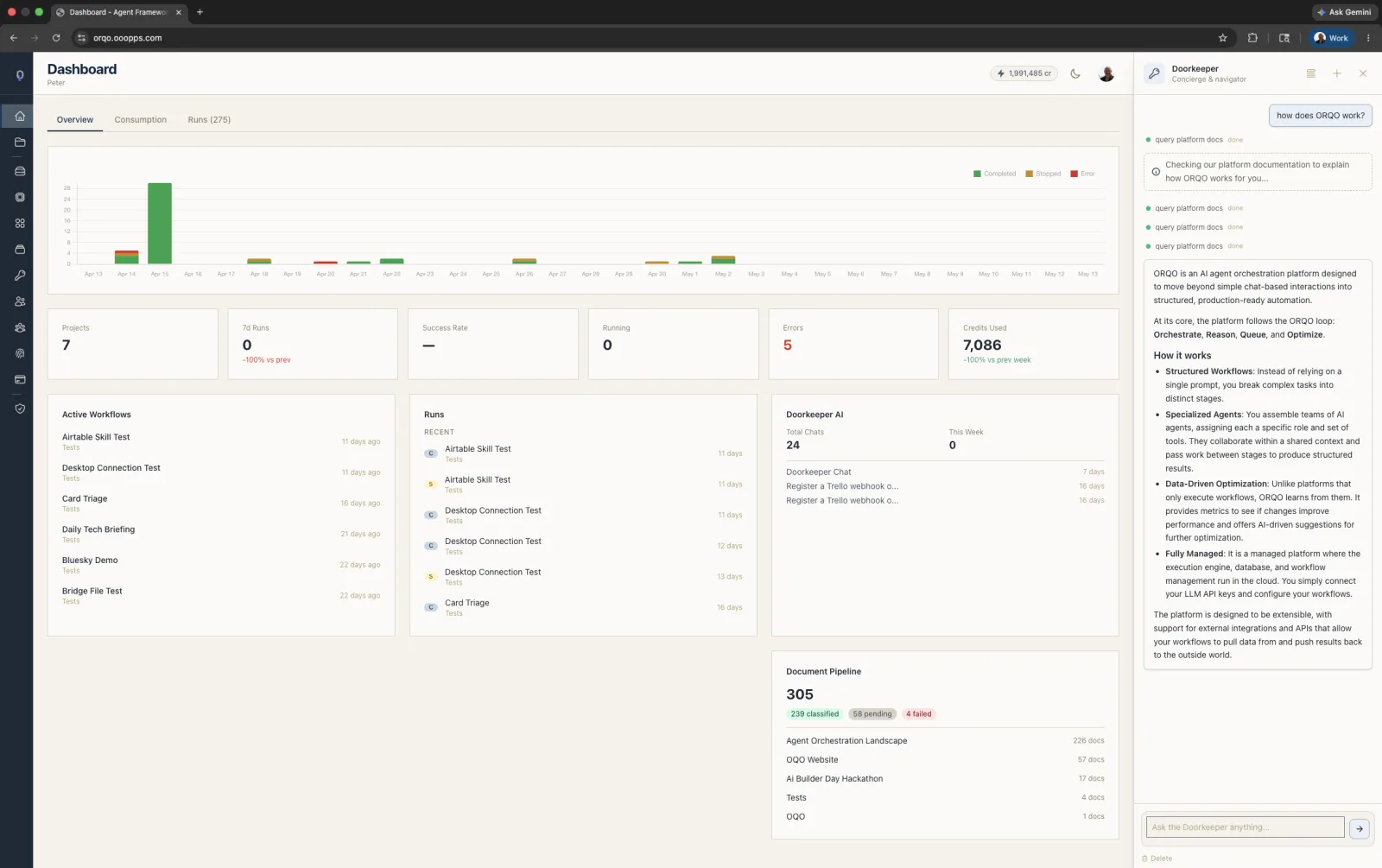
Doorkeeper is your organization's AI front desk. It receives inbound messages from all connected Apps — Slack, WhatsApp, Telegram — and handles them intelligently: responding directly, delegating to workflows, managing projects and documents, or routing to the right contact.
How It Works
Doorkeeper operates at the organization level. It sees all projects, workflows, and contacts. When a message arrives through any connected App, Doorkeeper:
- Identifies the sender — Matches the inbound message to a registered Contact. Unknown senders are rejected.
- Recalls relevant context — Searches its knowledge graph memory for information related to the conversation.
- Processes the request — Uses its tools to answer questions, take actions, or delegate to specialized agents.
- Responds through the originating channel — Replies go back through the same platform (Slack thread, WhatsApp chat, Telegram conversation).
Real-Time Progress Updates
When Doorkeeper processes a multi-step request, users receive instant feedback. Instead of waiting in silence while the AI works, you see progress updates like "On it, one moment..." or "Looking up that workflow now..." as each step executes.
This works across all channels — web UI, Slack, WhatsApp, and Telegram.
Capabilities
Conversations
Doorkeeper maintains persistent conversations. In Slack DMs and WhatsApp/Telegram chats, the conversation continues across messages — you don't need to repeat context.
To start a fresh conversation, send any of these commands:
new sessionclear sessionstart overreset
Media Processing
Doorkeeper automatically extracts content from media you send through messaging platforms, so you can communicate naturally using voice, images, and files.
Voice Message Transcription
When you send a voice message (recorded using the push-to-talk button in WhatsApp, Telegram, or similar apps), Doorkeeper automatically transcribes it to text and processes it as a regular message. You can speak your requests instead of typing them.
Supported voice formats: OGG/Opus, WebM/Opus, MP3, WAV, and MP4.
Only voice messages (recorded in-app) are transcribed. If you forward a regular audio file like a podcast or music track, Doorkeeper treats it as a file attachment rather than a spoken message.
Image Vision and OCR
When you send an image, Doorkeeper processes it in two ways:
- Vision — The image is passed to the LLM, which can see and describe its visual content. This works with JPEG, PNG, GIF, and WebP formats.
- Text extraction (OCR) — If the image contains text (screenshots, documents, signs, whiteboards), that text is automatically extracted and included alongside the image. This means Doorkeeper has both the visual context and the exact text strings, so it can quote, search, or act on text from images accurately.
Document and File Handling
Doorkeeper can save received images and documents to a project's document library. Documents saved by Doorkeeper are automatically classified into the Knowledge Graph.
Project Management
Doorkeeper can create, update, and delete projects through conversation:
- "Create a new project called Customer Research"
- "Update the description of the SEO project"
- "Delete the test project"
Document Management
Read, create, update, and organize documents across projects:
- "What documents are in the Research project?"
- "Create a meeting notes document in the Planning project"
- "Move that document to the Archive folder"
Documents created or updated by Doorkeeper are automatically classified into the Knowledge Graph.
Workflow Operations
Browse workflows, trigger runs, and check on recent activity:
- "Show me all workflows in the Content project"
- "Run the weekly report workflow"
- "What are the recent workflow runs?"
Knowledge Graph Memory
Doorkeeper maintains persistent memory across conversations using a knowledge graph. It remembers:
- Preferences — How you like things done
- Decisions — Past conclusions and their reasoning
- Experiences — What happened in specific scenarios
- Patterns — Recurring themes and workflows
- Topics — Domain knowledge and facts
Memory is automatically recalled when relevant to the current conversation. You can also ask Doorkeeper to remember specific things or query its knowledge directly.
Agent Delegation
For complex creation or modification tasks (building teams, designing workflows), Doorkeeper delegates to the project-scoped Workflow Assistant. For adding new platforms, credentials, MCP servers, or custom Python tools, Doorkeeper delegates to the org-scoped Integration Builder, which calls the Tool Builder internally when Python is the right answer. The Workflow Assistant routes its own capability requests through Integration Builder for the same reason — there is one path for capability work, and it goes through Integration Builder.
Web Search and Fetch
Doorkeeper can search the web and fetch content from URLs to answer questions or gather information for your requests.
Entry Points
| Channel | How it works |
|---|---|
| Web UI | Chat drawer at the right edge of every page, opened by clicking the chat handle or pressing ⌘J. Doorkeeper is the default specialist on dashboard, templates, contacts, subscription, API tokens, and LLM configuration pages — see below for the full page-to-agent mapping. |
| Slack | Messages to your Slack bot are routed to Doorkeeper |
| Messages to your WhatsApp Business number are routed to Doorkeeper | |
| Telegram | Messages to your Telegram bot are routed to Doorkeeper |
| API | POST to the messages endpoint |
How the Chat Drawer Chooses Its Agent
The chat drawer in the ORQO dashboard always shows exactly one specialist — the one that fits the page you're on. There are no tabs to pick from. As you navigate, the drawer follows you and updates the active agent automatically.
| Where you are | Specialist you talk to |
|---|---|
| Dashboard, templates, contacts, subscription, API tokens, LLM configurations | Doorkeeper |
| Project, team, workflow, stage, run pages | Workflow Assistant |
| Settings → Integrations / MCP servers / Credentials / Apps | Integration Builder |
| Developer Portal pages | Tool Builder (developer-only) |
Sticky-with-hint
If you're mid-conversation with one specialist and you navigate to a page where a different specialist would be the default, the drawer does not force a switch. It keeps your conversation open and shows a small banner at the top — for example, "This page is for Integration Builder." — with two buttons:
- Switch — drop your current conversation from the drawer and show the page-agent's recent conversations list. Pick one to continue, or start fresh with the
+button. Your previous conversation isn't deleted; it's just no longer the one the drawer auto-loads. - Stay — dismiss the banner. Keep talking to the agent you were already with.
Doorkeeper-style replies ("That's an Integration Builder thing — want me to hand it off?") are not the only option. The drawer itself surfaces the page's default specialist so you can decide without leaving the chat.
Cross-Agent Handoff
Each specialist knows the boundaries of its own domain. When a request lands outside that domain, the agent has two choices:
- Delegate — quietly call another specialist for a one-shot result and continue the conversation itself. You don't see the drawer change. (For example, Doorkeeper asks Workflow Assistant for a workflow validation, gets the answer back, and replies to you in the Doorkeeper conversation.)
- Hand off — terminal transfer. The current agent ends its turn, the chat drawer swaps to the right specialist, your reformulated request lands in their conversation, and the main view navigates to the specialist's home page. A Doorkeeper conversation that turns out to be a workflow design problem hands off to Workflow Assistant cleanly.
When the specialist finishes — or decides the request really is out of their domain — they hand control back the same way. If the agent receiving control already has an open thread in this conversation (i.e. they're the one who handed off to you in the first place), that thread is resumed with full prior history rather than starting fresh: they pick up exactly where they left off, with a brief status note from the specialist on what just happened. So a Doorkeeper → Integration Builder → Doorkeeper round trip leaves you back in the original Doorkeeper chat, with everything Integration Builder did visible in between.
The source and target conversations are linked by a shared session ID and the chat drawer renders all of them as one continuous timeline. Horizontal separators mark every agent change — both directions:
You: Set up a Stripe integration so the billing workflow can issue refunds.
Doorkeeper: That's an Integration Builder task — handing off now.
── Integration Builder takes over ──
Integration Builder: Got it. Stripe for refunds — let me check what's already set up …
Integration Builder: Stripe is wired up and the refund tool is verified. Handing back.
── Doorkeeper takes over ──
Doorkeeper: All set — the billing workflow can now issue refunds via Stripe. Anything else?
You see the full journey across agents in a single chat window, not three disconnected conversations. The conversation history list shows each segment under its own agent so you can re-open any part of it later.
Security
Doorkeeper only responds to registered Contacts. When a message arrives from an unknown sender (someone without a Contact record in your organization), the message is rejected before Doorkeeper processes it. This prevents unauthorized access to your organization's AI capabilities.
To allow someone to interact with Doorkeeper, add them as a Contact in Settings > Contacts and create a Contact Channel linking them to the appropriate App.