The Model Picker
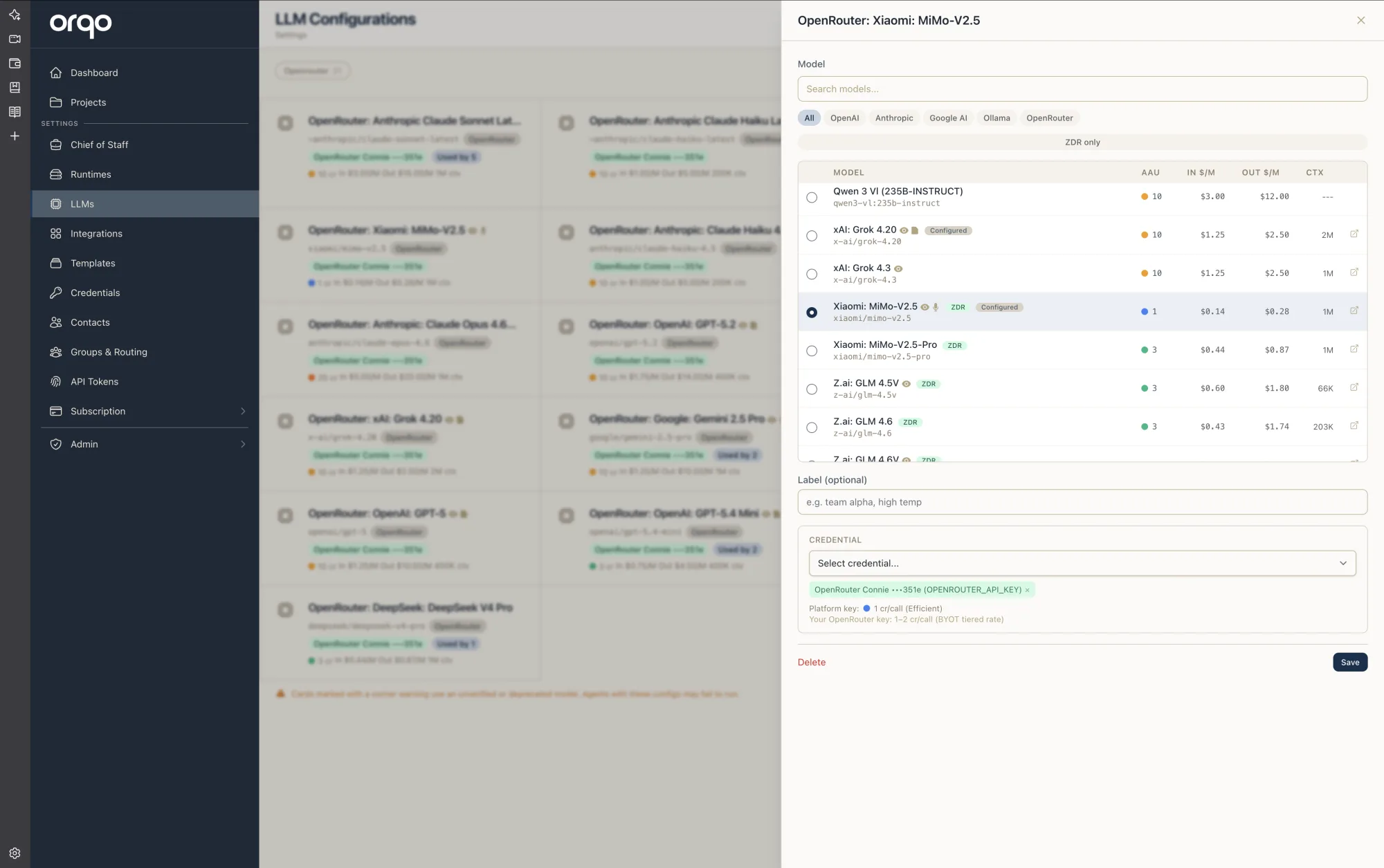
The model picker is where you choose which large language model an LLM configuration uses. It opens in a drawer when you add or edit a configuration under Settings → LLMs.
It packs a lot of information into a compact table — pricing, capabilities, data-handling, and how each model is billed — so you can compare models side by side without leaving the page. This page explains every column, icon, and badge.
Narrowing the list
At the top of the drawer:
- Search — Type to filter by model name or model ID.
- Provider filters — The pills (All, OpenAI, Anthropic, Google AI, Ollama, OpenRouter) limit the list to one provider.
- ZDR only — Toggle this to show only models that carry a Zero Data Retention guarantee. It combines with the search and provider filters.
The model table
Each row is one model. The columns are:
| Column | Meaning |
|---|---|
| Model | The display name, with the exact model ID beneath it. Capability icons and badges appear next to the name (see below). |
| AAU | How many credits one call costs when run on ORQO's included platform access. The colored dot is the model's pricing tier. |
| In $/M | The provider's list price per million input tokens (the tokens you send). |
| Out $/M | The provider's list price per million output tokens (the tokens the model generates). |
| CTX | The context window — how much text the model can consider at once (e.g. 128K, 1M). --- means the size isn't published. |
At the end of each row, the ↗ link opens the model's full model card on the provider's site.
These are the provider's published list prices, shown so you can compare models. They are not what you're charged directly on included access — that's the AAU credit cost (the AAU column). They do matter if you bring your own key, since then you pay the provider directly at their rates.
Icons and badges next to a model name
Capability icons tell you what the model can accept as input:
| Icon | Meaning |
|---|---|
| 👁 (eye) | Vision — the model can read images. |
| 🎤 (microphone) | Audio — the model can take audio input. |
| 📄 (document) | File input — the model can take files directly. |
Badges:
- ZDR (green) — A Zero Data Retention option is available for this model: your data isn't stored or used for training. See Data Privacy.
- Configured (grey) — You already have an LLM configuration using this model.
- Unverified / Deprecated (amber) — The model is stale: either not yet verified to work, or retired by the provider. Agents pointed at it may fail to run — prefer a model without this badge.
AAU credits and pricing tiers
The AAU column shows a colored dot and a number — the number is the credits one call costs on included platform access, and the dot is the model's tier:
| Dot | Tier | Credits / call |
|---|---|---|
| 🔵 Blue | Efficient | 1 |
| 🟢 Green | Standard | 3 |
| 🟠 Amber | Performance | 10 |
| 🟧 Orange | Premium | 25 |
| 🔴 Red | Frontier | 60 |
Cheaper, lighter models sit in the lower tiers; the largest frontier models cost the most credits per call. Choosing a lower-tier model where it's good enough is the simplest way to stretch your credits. See Pricing for how credits work.
Sorting
Click any column header — Model, AAU, In $/M, Out $/M, or CTX — to sort by it. Click again to reverse the order, and once more to return to the default order. This makes it easy to, say, find the cheapest model that still has a large enough context window.
Choosing a credential (how the call is billed)
Below the table, the Credential section decides whose account the calls run through:
- Included platform access — Use the credits bundled with your plan. The hint reads, for example, “Platform key: 3 cr/call (Standard).”
- Bring your own key — Select your own provider credential. The hint shows “Your <provider> key: 1–2 cr/call (BYOT tiered rate)” — you pay the provider directly, and ORQO charges a small flat rate per call instead of the full tier cost. See Bring Your Own Key.
ORQO's included platform access only serves models that qualify for Zero Data Retention. If a model can't be served that way, the platform option is shown as “not available (no Zero Data Retention endpoint)” — you can still use that model, but only with your own key. See Data Privacy for the full explanation.
Learn more
- Configure an LLM — step-by-step walkthrough
- LLM Configuration — what an LLM configuration is
- Data Privacy — Zero Data Retention, explained
- Pricing — how AAU credits and bring-your-own-key billing work